Listing description from your floor plan, written on your iPhone
How PlanSnap writes a short listing description from your measured rooms with Apple Intelligence on the iPhone, what it sends and how to edit, copy or share it.
Short answer
PlanSnap can draft a two-to-four-sentence listing description from the rooms you measured. It uses Apple Intelligence on the iPhone, so the draft is written on the device from the room areas and types, never from your address, notes or photos. You read it, edit it, then copy or share it. Writing listing descriptions is a Pro feature and needs a device with Apple Intelligence.
Once a home is measured, the dull part of a listing is turning numbers into a paragraph. PlanSnap already knows the total area, how many rooms there are and what each one is, so it can give you a factual first draft to polish rather than a blank text box. It sits next to the other planning and export tools on the features overview.
Where to find it
Open a project with at least one room and tap the … button at the top of the plan. Choose Write listing description.
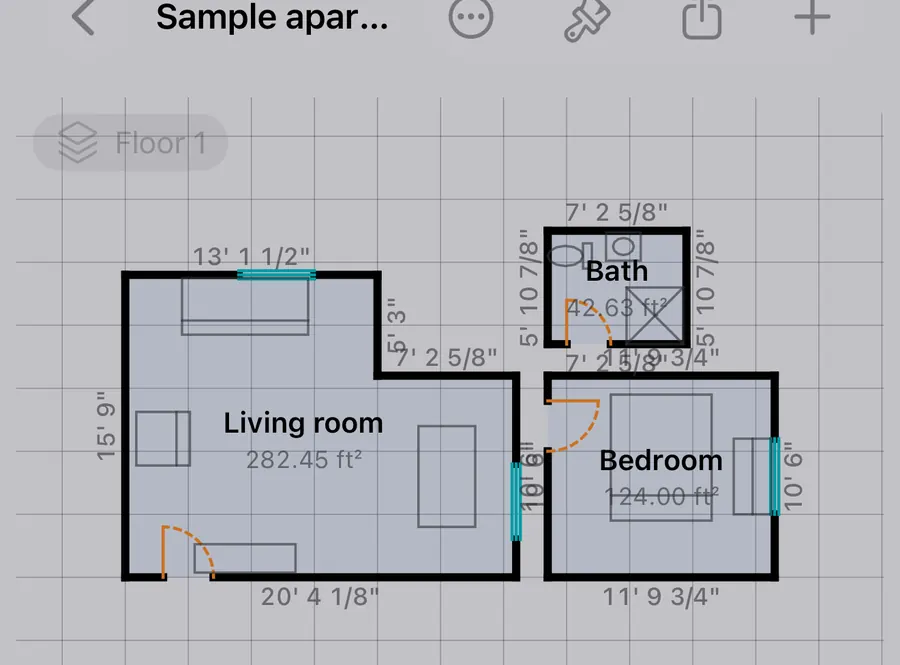
If Apple Intelligence is not ready, the menu item stays visible but greyed out with the reason, for example "Turn on Apple Intelligence in Settings to use this." or "Apple Intelligence is still getting ready. Try again later." On a device or iOS version that cannot run it, the item does not appear at all.
What the draft is built from
PlanSnap does not hand the model your project. It builds a short list of facts from the plan:
| Sent to the model | Never sent |
|---|---|
| Total floor area | Address or location |
| Number of rooms and floors | Your notes |
| Each room's type and area | Photos |
| Ceiling height and window count per room | Prices |
The instructions ask for two to four sentences that use only those facts, mention the total area and the main rooms, and avoid prices, location, features that are not in the list, and superlatives. That keeps the draft on the side of "what is there" rather than sales talk.
Write and use a listing description
- Check your room types first. A room called "Room 3" with no type gives the model little to say.
- Tap … on the plan and choose Write listing description.
- Wait while the sheet shows "Writing on this iPhone…". The text appears as it is written.
- Read it. Tap into the text to fix anything, or tap the refresh button to write it again.
- Tap Copy to paste it into your listing, or Share to send it elsewhere.
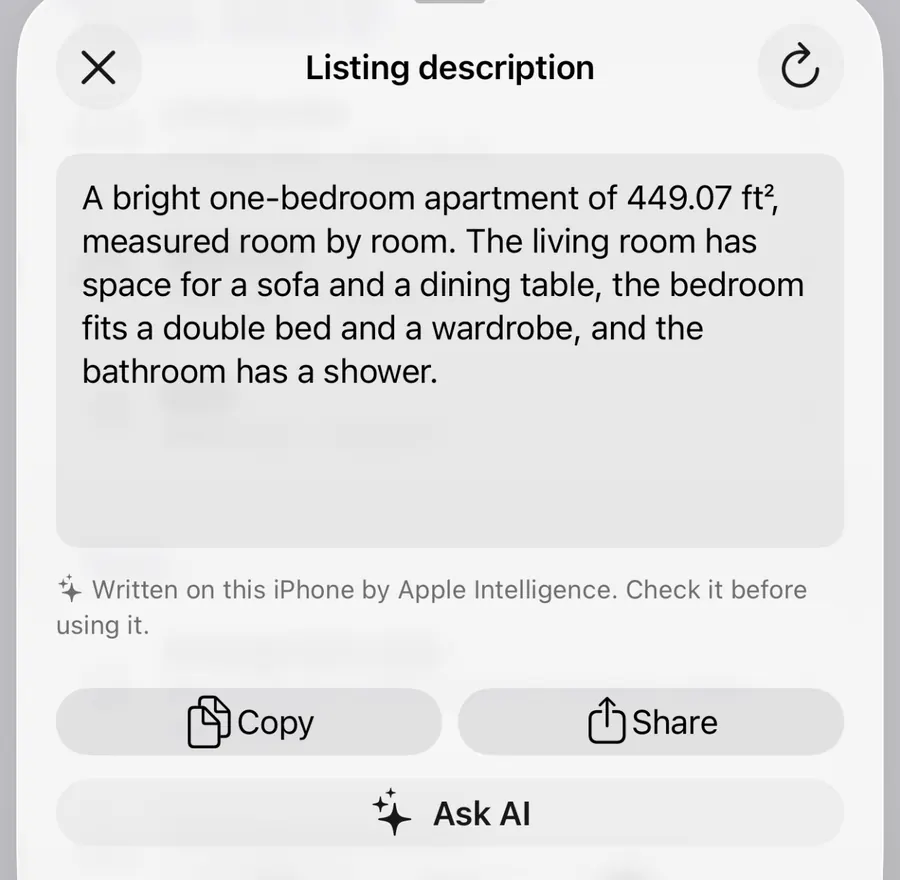
The badge under the text says "Written on this iPhone by Apple Intelligence. Check it before using it." Take that seriously: the model can describe a room in a way you would not, and the wording is yours once you publish it.
Metric plans read in metric
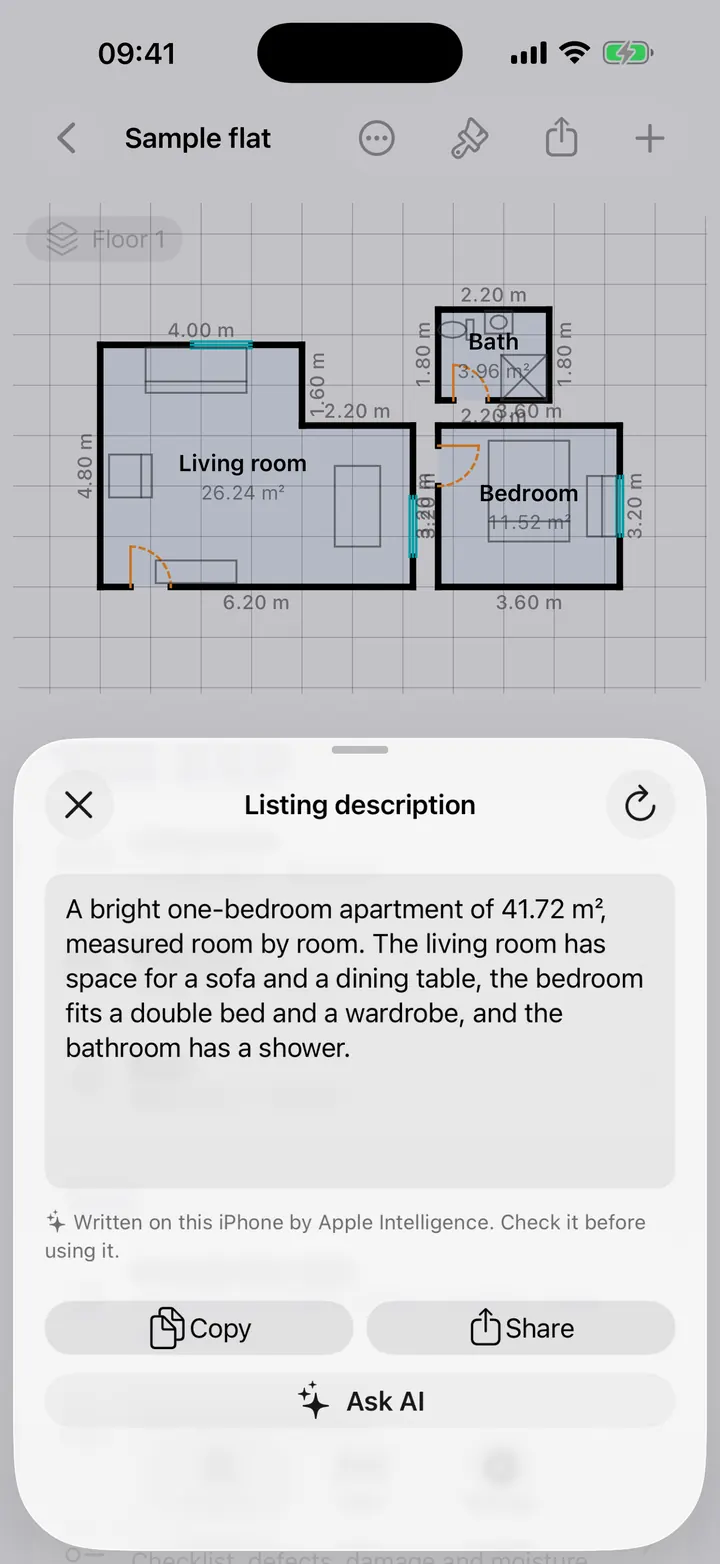
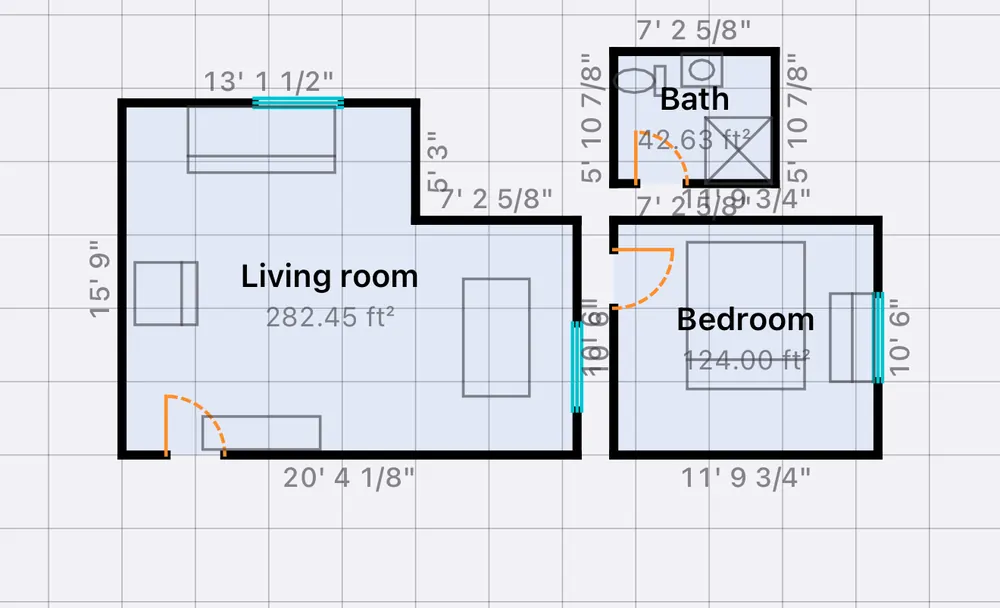
The draft follows your units. A plan in metres gives areas in square metres, and an imperial plan gives square feet.
Suggest room types
A good description needs typed rooms. If some rooms have no type, the … menu also offers Suggest room types. It uses Apple Intelligence where it can, and otherwise looks at the furniture a LiDAR scan found: a bathtub points to a bathroom, a bed to a bedroom. You review the list and tap Apply. Untyped rooms still called "Room 1" and so on take the type's name. If nothing points to a type, set it from the room's menu in the room editor. This helper is not limited to Pro.
Ask AI, if you want a second opinion
The Ask AI button opens a preview of a prompt that asks to improve the description while keeping it factual. You can read and edit the prompt, then pick an app such as ChatGPT, Claude, Gemini, Grok, Perplexity or Copilot, copy the prompt, or use the share sheet. PlanSnap only opens the app you choose with the text you saw; it does not receive the prompt or the answer.
Listing image and RESO data
The description is often one part of a listing. The Export sheet also has a Listing image (MLS) format: a clean PNG about 2048 px on its long side, with rooms filled by type and labelled with name and width × length, floors side by side, and the line "All dimensions are approximate." RESO data (JSON + CSV) exports living area, above- and below-grade finished area, total rooms and bedrooms for listing software. For how the areas are counted, see the area report for GLA and Wohnfläche, and for printed plans see PDF floor plan export.
Does PlanSnap send my floor plan to a server to write the description?
No. The description is written by Apple Intelligence on the iPhone from a short list of room facts. Your address, notes and photos are not part of it.
Why is Write listing description greyed out?
Apple Intelligence is turned off, still getting ready, or does not support your language yet. The menu item shows which one.
Can I edit the description?
Yes. Once it has finished writing, tap the text to edit it, then copy or share your version. The refresh button writes a new draft.
Will it mention the price or the neighbourhood?
No. The instructions tell it to leave out prices and location and to stick to the rooms and areas.
Do I need Pro?
Yes, for the listing description, the listing image and RESO export. Suggesting room types works on the free plan.
Keep reading
Area report: approximate GLA and Wohnfläche from your floor plan
How the PlanSnap area report estimates gross living area in the ANSI Z765 style and German Wohnfläche, with sloped ceilings, balconies and below-grade rooms.
Read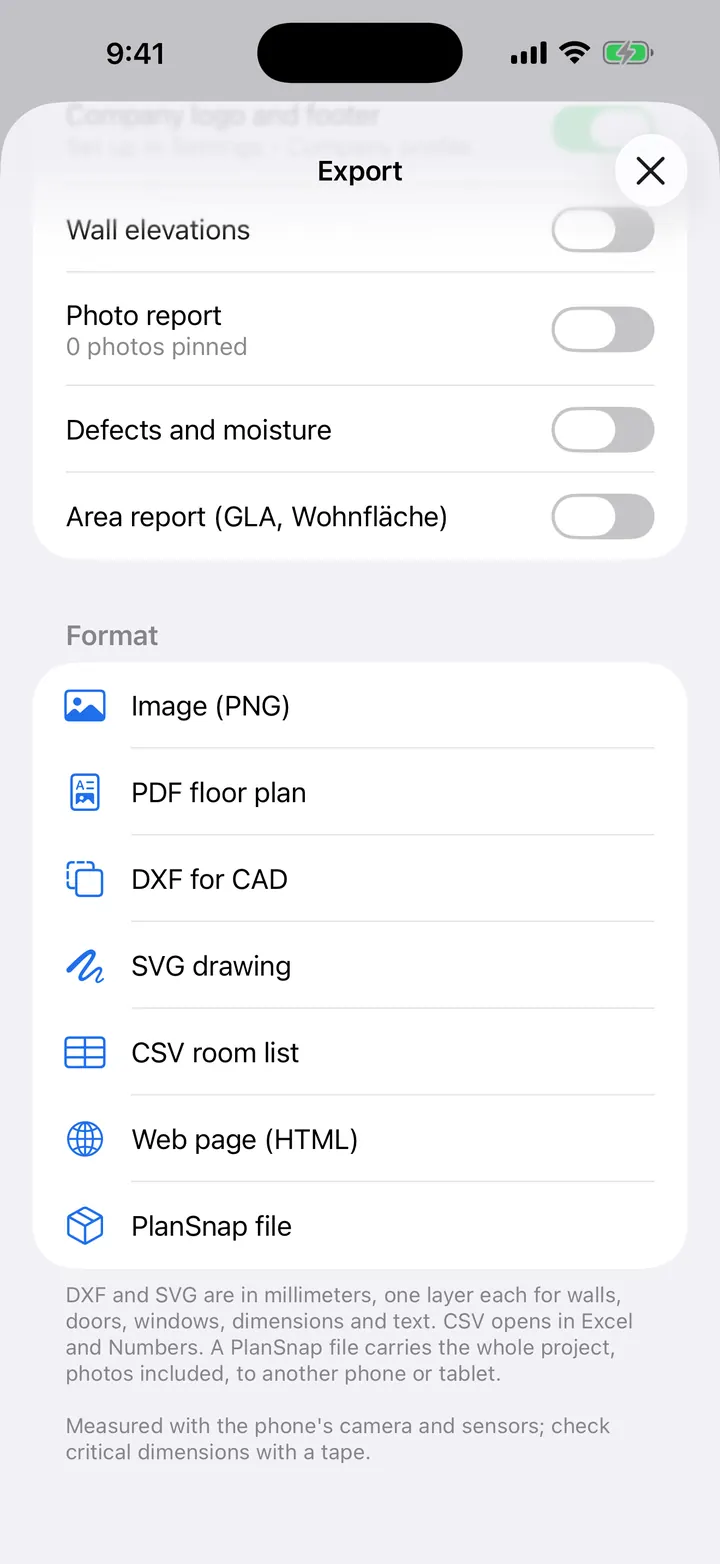
PDF floor plan export: scaled plans, schedules, photo reports and your logo
What goes into a PlanSnap PDF floor plan: a cover with room totals, one page per floor at a set scale, door and window schedules, photos, extras and your logo.
ReadRoom editor: wall lengths, corners, doors and windows
How the PlanSnap room editor works: tap a wall to type its length, drag corners and walls, add doors and windows, flip a door swing and read the net wall area.
ReadHow to measure a room’s square footage with your phone
Measure a room with LiDAR, AR corners or tape lengths and let PlanSnap work out floor area, perimeter and wall area, with accuracy tips and when to use a tape.
Read guide