Draw a room from tape lengths: walls, diagonals and a tape check
Draw a room in PlanSnap without the camera: start from a rectangle or L-shape, or type wall lengths and diagonals from your tape, then check the plan closes.
Short answer
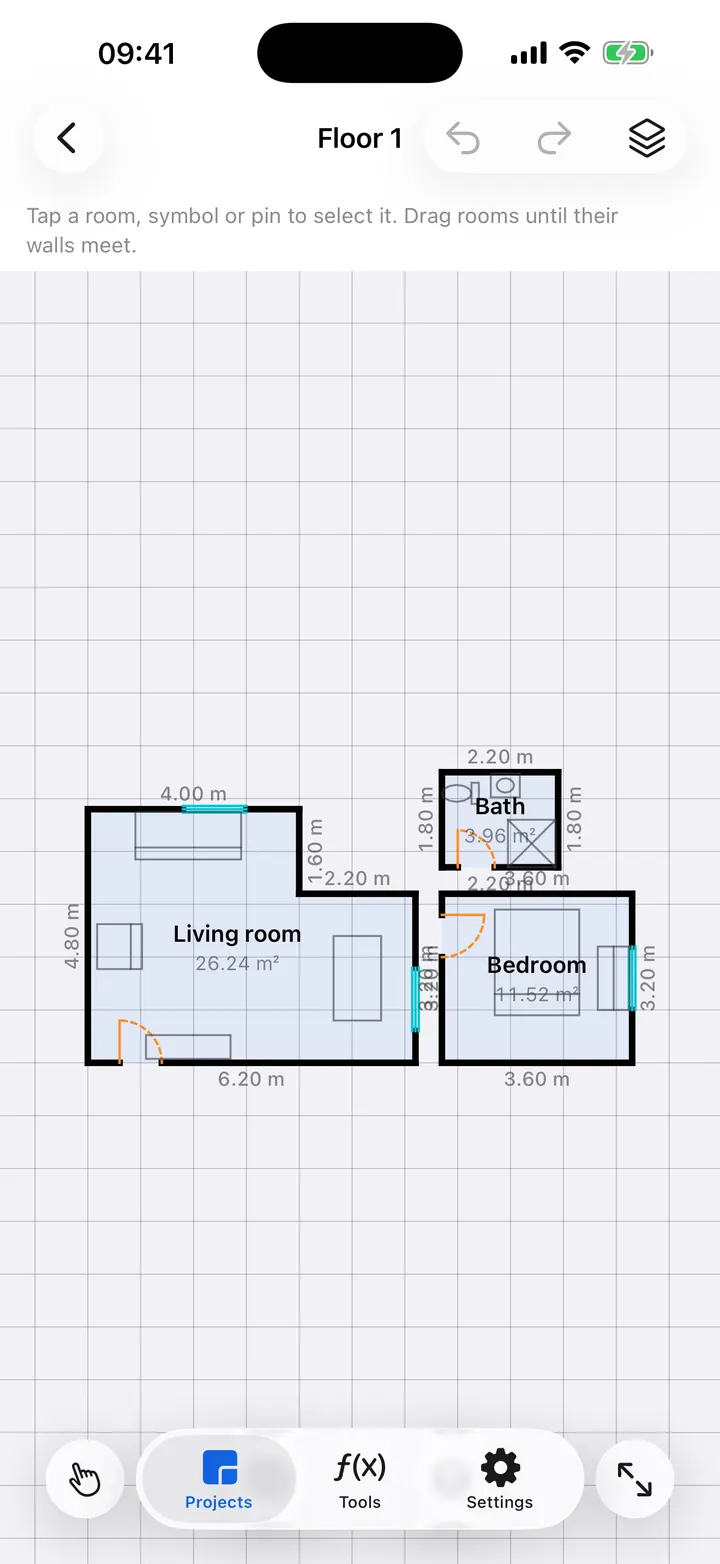
PlanSnap lets you add a room without the camera. Pick Rectangle and type the width and depth, start from an L-shape and edit it, or use From tape lengths to type every wall and the diagonals you measured. Then Tape check shows how far the walls miss closing and can spread the error or scale the room to your tape.
AR and LiDAR are quick, but sometimes a tape is the better tool: the room is dark, full of furniture, or you already have the numbers on a sketch. PlanSnap treats typed lengths as a first-class way to build a room, alongside capturing corners in AR and scanning. Drawing works on every device, including ones without AR.
Three ways to draw a room
Open a project, tap + and look under Draw:
| Option | What you enter | Best for |
|---|---|---|
| Rectangle… | Width and depth | Simple square-cornered rooms |
| L-shape | Nothing; you get an L to edit | Rooms with one corner cut out |
| From tape lengths… | Every wall and the diagonals | Odd shapes, or when the walls are not square |
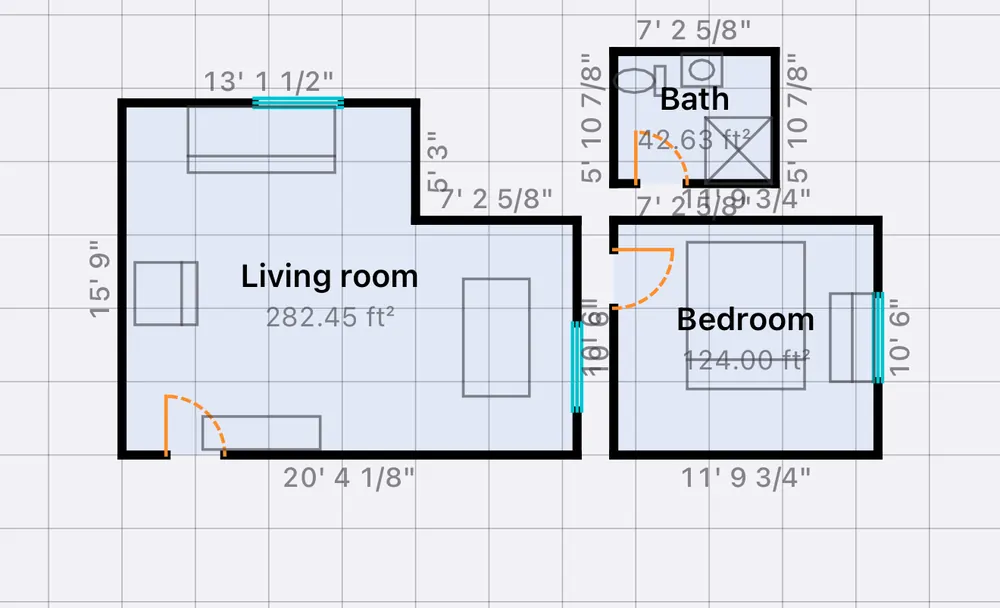
Rectangle asks for two sizes and adds the room. If a size is outside a sensible range, it says "Those sizes don't look right". The L-shape starts as a standard L that you then adjust in the room editor by typing each wall length or dragging corners.
Room from tape lengths
A tape gives you wall lengths, but lengths alone do not fix a shape: four walls of the same lengths can form a square or a lopsided diamond. Diagonals fix it. PlanSnap asks for the walls going round the room and enough diagonals from corner 1 to lock the shape, then solves the corners for you.
Draw a room from tape lengths
- Measure each wall going round the room in one direction, and the diagonals from one corner to the others.
- In the project, tap +, then From tape lengths….
- Set Walls to the number of walls (3 to 12).
- Under "Walls, going round the room", tap each wall and type its length.
- Under "Diagonals, corner to corner", type each diagonal. Corner 1 is where wall 1 starts.
- Watch the preview. When the shape solves, tap Add.
How many diagonals you need
A triangle needs none. Each extra wall needs one more diagonal, so a four-wall room needs one and a six-wall room needs three. PlanSnap lists exactly the ones it needs. You can also tap Add a check diagonal and pick any two corners; extra diagonals are used as a check rather than ignored, and you can swipe one away if you no longer want it.
When the lengths do not fit
The footer under the lists tells you what is wrong in plain words:
- "Type the length of every wall and diagonal."
- "Add 1 more diagonal(s) to fix the shape." (or however many are missing)
- "Corners 1, 2 and 3 can't meet with these lengths. Check them." (the corner numbers change with the problem)
- "The diagonals disagree by …. Measure them again." This appears when a check diagonal is more than about 3/4" (2 cm) off.
- "These lengths make walls cross. Check the order of the walls."
Lengths follow your units. In feet and inches you type something like 10' 6"; in metres, 3.25 or 325 cm. Anything outside 2" to about 650 ft (5 cm to 200 m) is rejected.
Tape check: does the plan close?
Any room, however you made it, can be checked against a tape. In the room editor, open the ⋯ menu and choose Tape check under Survey. Tap each wall you measured and type the tape length; the tick marks a length you trust. Walls you leave alone keep the plan's own length. You can also set a single wall from the editor's wall menu with Type tape length.
The banner at the top then says how far the walls miss closing, for example "The walls miss closing by 3/8" (1 : 450)". It is green when the miss is under 3/8" (1 cm), orange under about 1 1/4" (3 cm), and red above that.
Two fixes are offered:
- Distribute the error keeps the ticked walls at their tape length and moves the others to close the room.
- Scale the room to the tape stretches the whole room to fit the tape, which suits a plan that is right in shape but slightly too big or small.
Both can be undone, and swiping a wall and tapping Clear removes a typed length.
Sloped ceilings under a roof
Attic rooms need one more thing: the slope. In the room editor's ⋯ menu, under Layouts, Area rules has Add a sloped ceiling. Pick the wall under the slope, type the knee wall height ("Where the slope starts, measured from the floor.") and the roof pitch in degrees from horizontal. The slope changes the counted area in area reports, which are approximate and not certified measurements.
What to do next
Add doors and windows in the room editor, then place the room beside the others on the floor plan. If you are measuring for a sale listing or a flooring order, our guide on measuring a room's square footage covers what to include.
Can I make a floor plan without AR in PlanSnap?
Yes. Rectangle, L-shape and From tape lengths all work without the camera, so you can draw rooms on any iPhone or iPad.
Why does PlanSnap ask for diagonals?
Wall lengths alone do not fix the angles of a room. Each diagonal locks one more corner, so a room with n walls needs n minus 3 diagonals.
What does the 1 : N number in Tape check mean?
It compares the closing error to the length of the walls. A bigger number means a smaller error for the size of the room.
Should I distribute the error or scale the room?
Distribute when you trust some walls more than others and have ticked them. Scale when the shape is right but the whole room is slightly too big or too small.
Can I mix AR and tape lengths?
Yes. Capture a room in AR, then open Tape check and type the lengths you measured with a tape to correct it.
Keep reading
Room editor: wall lengths, corners, doors and windows
How the PlanSnap room editor works: tap a wall to type its length, drag corners and walls, add doors and windows, flip a door swing and read the net wall area.
Read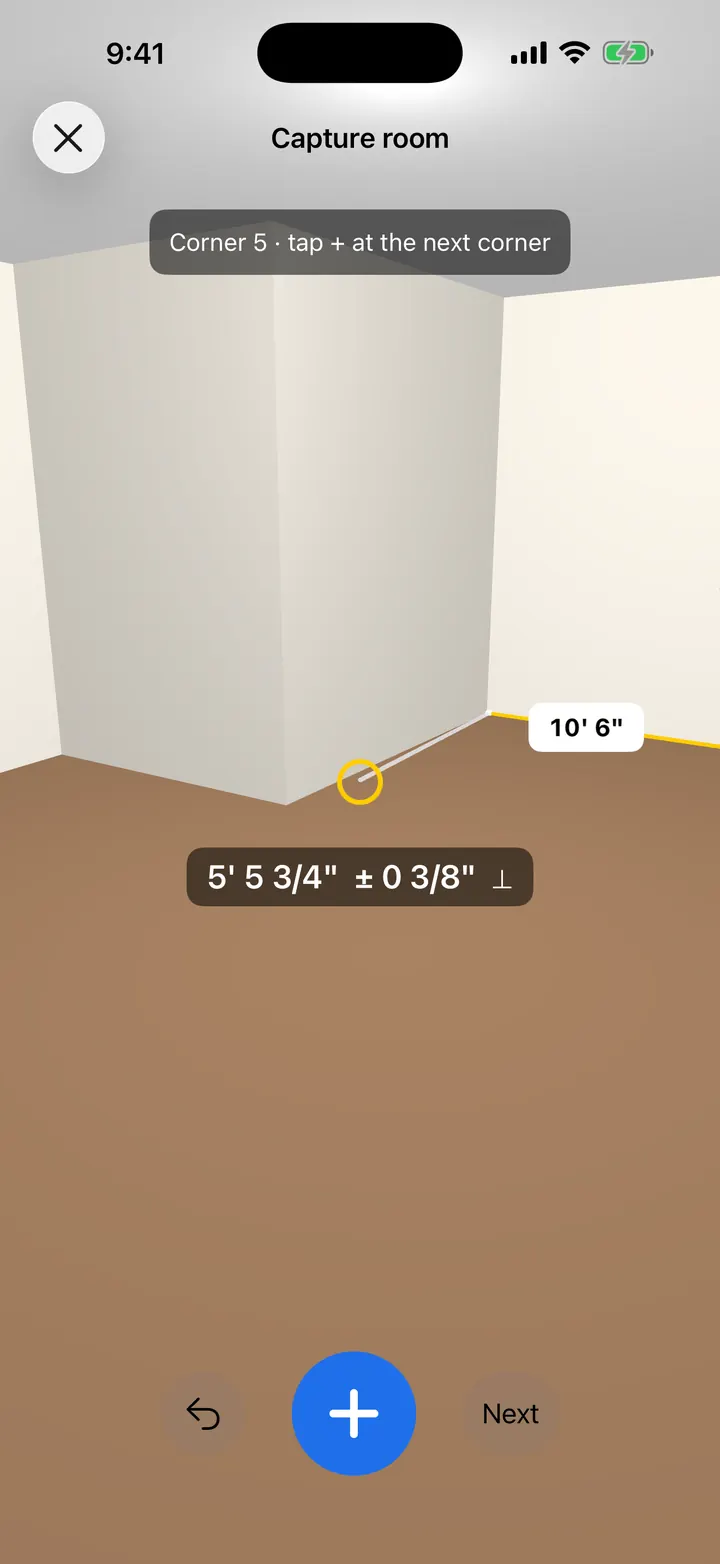
Capture a room in AR: tap the corners, get a floor plan
How PlanSnap turns a room into a floor plan in AR: tap each floor corner, add the ceiling height, mark doors and windows, then square up nearly square corners.
ReadArea report: approximate GLA and Wohnfläche from your floor plan
How the PlanSnap area report estimates gross living area in the ANSI Z765 style and German Wohnfläche, with sloped ceilings, balconies and below-grade rooms.
ReadHow to measure a room’s square footage with your phone
Measure a room with LiDAR, AR corners or tape lengths and let PlanSnap work out floor area, perimeter and wall area, with accuracy tips and when to use a tape.
Read guide