Move-in and move-out report: rate every room, read the meters and sign on iPhone
How the PlanSnap move-in and move-out report works: a checklist per room, meter readings, keys, signatures, a side-by-side comparison and a sealed PDF to share.
Short answer
PlanSnap's Move-in and move-out tool turns a measured home into a condition checklist. You rate each item in each room as Good, Worn, Damaged or Missing, add meter readings and keys, and both sides sign on the screen. At move-out the same checklist is copied, and PlanSnap lists what changed, with new damage first. The report is a Pro feature.
A handover usually ends with a clipboard, a pen that does not work and a list nobody can find a year later. PlanSnap keeps the condition report inside the same project as the floor plan, so the rooms you measured are the rooms you rate, and the move-out can be checked line by line against the move-in. It is one of the project tools listed on the features overview.
Where the report lives
Open a project and look in its tools list for Move-in and move-out, described as "Condition per room, meters, keys, signatures and comparison". Until you start one, the screen says "No move-in inspection yet" and offers a Start move-in button.
The inspection has a details section at the top (the date and the inspector's name), then one section per room, then Meters, Keys and Signatures.
A checklist built from your rooms
PlanSnap fills each room with checklist lines that suit its type. Every room gets the basics: walls and paintwork, ceiling, floor and skirting, doors, frames and handles, windows, sills and locks, blinds and curtains, lights and switches, sockets, heating and radiators, and cleanliness. Typed rooms get more:
| Room type | Extra lines |
|---|---|
| Kitchen | Cupboards and drawers, worktop, sink and taps, hob and oven, extractor hood, fridge and freezer, dishwasher |
| Bathroom | Toilet and seat, basin and taps, bath or shower, tiles and sealant, mirror and cabinet, extractor fan |
| Bedroom | Wardrobe, furniture (if furnished) |
| Hallway | Smoke alarm, entrance door and lock |
| Balcony | Railing, surface and drain |
Laundry, garage, toilet and living rooms have their own short additions too. This is why it pays to set room types in the room editor before you start.
Tap a line to rate it. A menu offers Good, Worn, Damaged or Missing, plus Note for a short comment such as "scuff by the door". Lines you have not rated show "Not rated", so gaps are easy to spot. Good shows in green, Worn in orange and Damaged or Missing in red.
Record a move-in
- Open the project and tap Move-in and move-out in its tools.
- Tap Start move-in, check the date and tap Inspector to type a name.
- Walk room by room. Tap each line, pick a condition and add a note where it helps.
- Tap Add meter reading, choose Electricity, Gas, Water, Heat or Other, and type the reading and, if you like, the meter number.
- Tap Add keys, type a label such as Front door and the number handed over.
- Tap Sign, type a name, pick a role and sign inside the box with a finger or Apple Pencil. Repeat for each person.
Meters, keys and signatures
Meter readings default to sensible units: kWh for electricity and heat, m³ for gas and water. The signature pad asks for a name and a role (Tenant, Landlord, Agent, Inspector, Witness or Other) and records the date and time when you save. If you tap save on a blank pad, PlanSnap asks you to sign in the box first. Swipe left on a meter, key or signature row to remove it.
Move-out and the comparison
When the tenancy ends, tap Start move-out. As the app puts it, "The move-out copies this checklist so every line can be compared." You get the same rooms and lines, unrated, with empty meters and keys, so you walk the home again without being steered by the old ratings.
Then tap Compare move-in and move-out. The comparison screen opens with a one-line summary of how many lines changed, how many show new damage and how many improved. New damage is listed first, in red with a warning icon. Each row reads before → after, for example Good → Damaged. Lines that exist at only one end are marked "Only at move-out" or "Only at move-in". If nothing moved, you see "No changes".
Sharing the report as a PDF or a sealed file
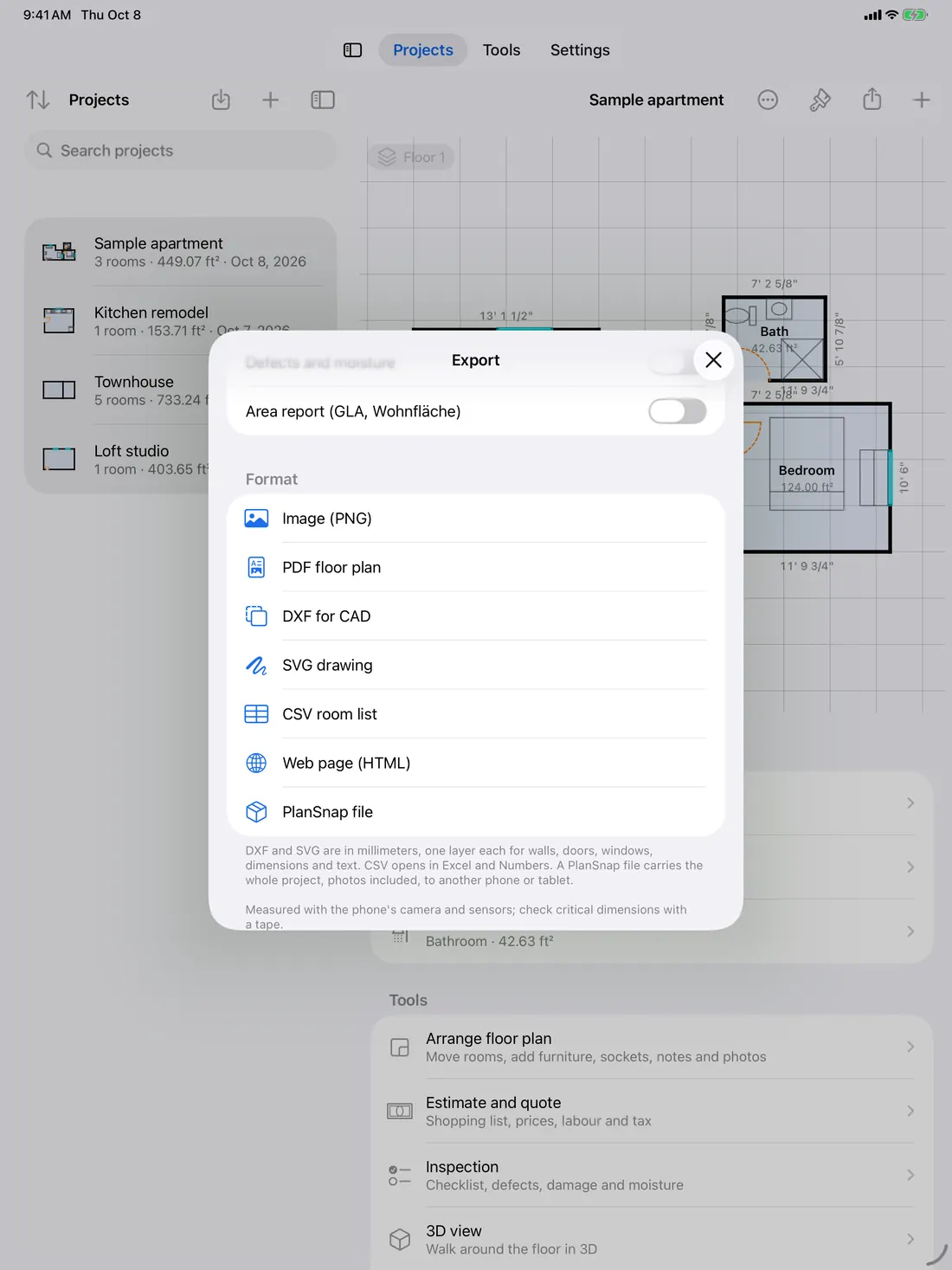
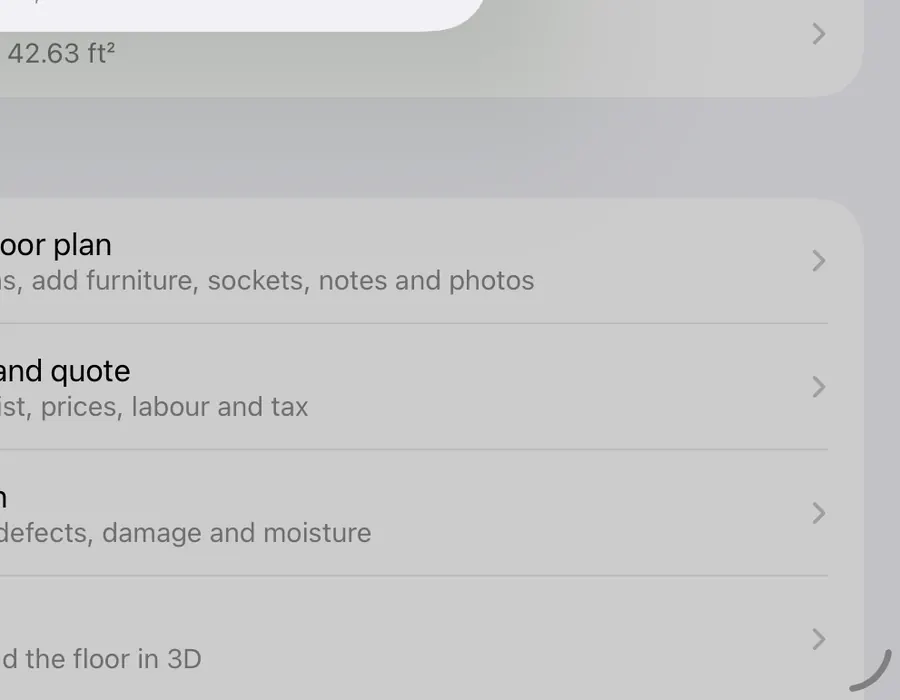
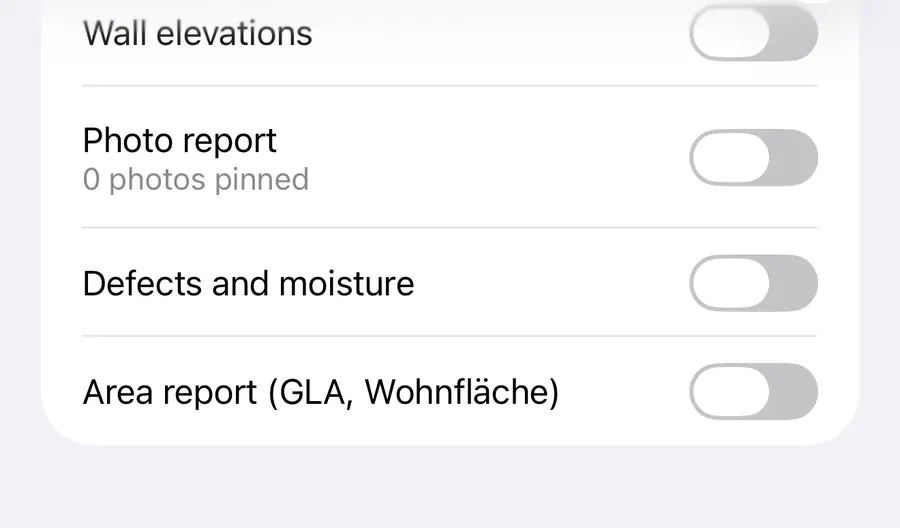
Once a rental inspection exists, the Export sheet shows a Move-in / move-out report toggle among the report sections. The PDF section includes the inspection title, the inspector and date, a condition table (room, item, condition, note), the meter and key tables, and signature boxes with each name, role and date. A move-out report adds a "Compared with move-in" summary and a table of move-in and move-out conditions with new damage flagged.
If both sides want to know that nobody edited the record afterwards, export a Sealed PlanSnap file. PlanSnap fingerprints the project and its files when you export and shows "Package sealed". When the other person imports the file, PlanSnap tells them "Seal intact" or, if anything changed after sealing, "Seal broken" with a note to ask the sender for the original. More on the formats in exporting a PDF floor plan and the export guide.
Can tenant and landlord both sign on one iPhone?
Yes. Tap Sign once per person, type the name, pick the role and sign in the box. Each signature is saved with its date and time and appears in the PDF.
Does the move-out start with the move-in ratings filled in?
No. The move-out copies the same rooms and lines but leaves them unrated, with empty meters and keys. The comparison then shows each line as before and after.
What counts as new damage?
A line that got worse between move-in and move-out, such as Good to Damaged. New damage is listed first in the comparison and flagged in the PDF table.
Can I add photos to the checklist?
Not to the checklist lines themselves. Use the inspection tools to pin photos and defects to the plan; they export as their own report sections.
Is the move-in and move-out report free?
No, it needs PlanSnap Pro. AR measuring and the basic plan stay free.
Keep reading
Inspection checklists, defects and moisture readings on your floor plan
Use PlanSnap for room-by-room inspection checklists, defects pinned to the plan, damage areas, moisture readings, a drying log and a defects section in the PDF.
Read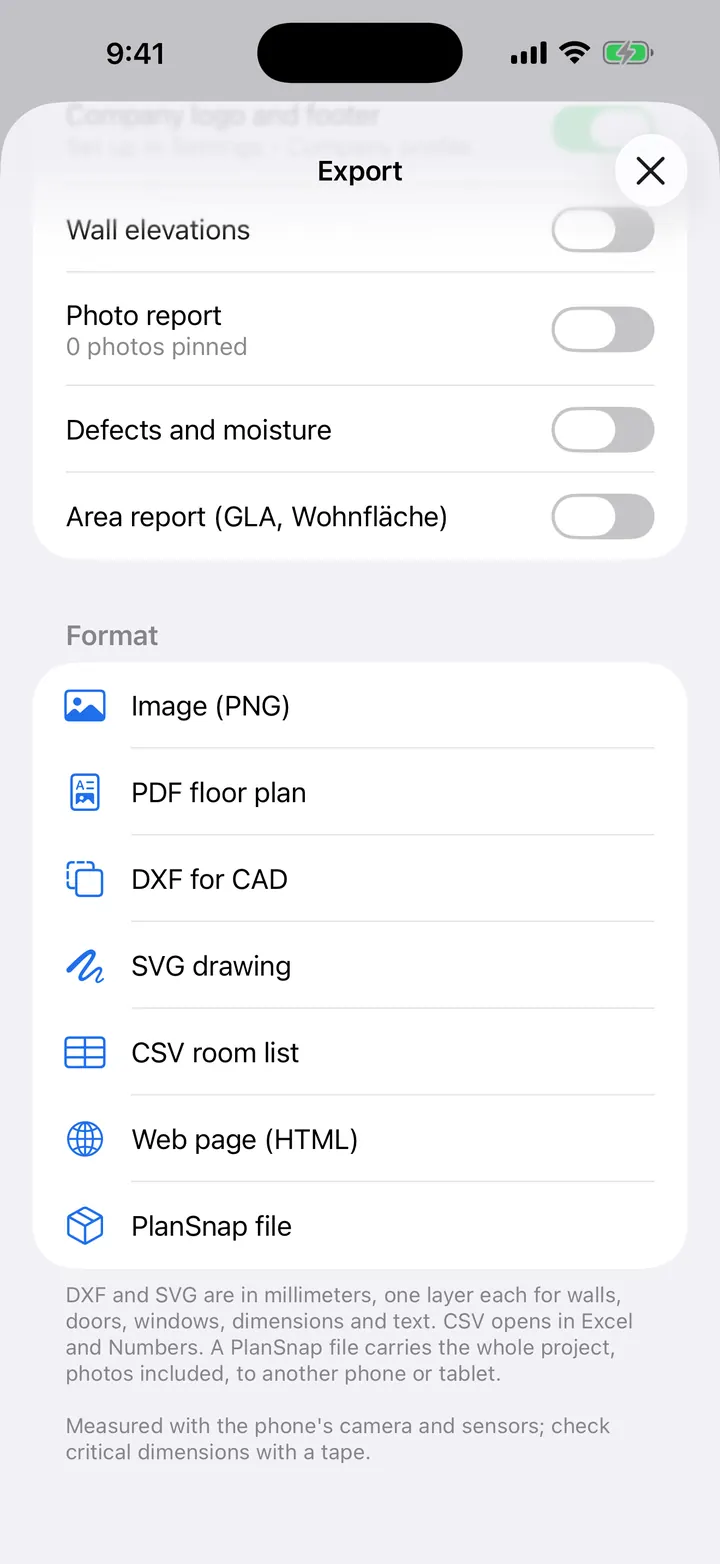
PDF floor plan export: scaled plans, schedules, photo reports and your logo
What goes into a PlanSnap PDF floor plan: a cover with room totals, one page per floor at a set scale, door and window schedules, photos, extras and your logo.
Read
Room editor: wall lengths, corners, doors and windows
How the PlanSnap room editor works: tap a wall to type its length, drag corners and walls, add doors and windows, flip a door swing and read the net wall area.
ReadWhich floor plan file should you send: PDF, DXF, SVG or CSV?
PlanSnap exports a floor plan as PNG, PDF, DXF, SVG, CSV, a web page or a PlanSnap file. What each format is for, who can open it and which ones are free.
Read guide