Level, angle finder and trade calculators: slope, miter, fractions and stairs
A tour of the PlanSnap Tools tab: the spirit level and angle finder, slope, miter, fraction and stair calculators, material calculators, widgets and Shortcuts.
Short answer
PlanSnap's Tools tab holds a spirit level, an angle finder and a set of trade calculators for slope, miter cuts, fractions and stairs, plus paint, flooring, tile, baseboard, wallpaper and area calculators. The level and the calculators work on the free plan. Saving level readings to a room and the psychrometrics calculator need Pro.
Not every job starts with a floor plan. Sometimes you just need to know if a shelf is level, what angle to set the saw to, or how many risers fit between two floors. PlanSnap keeps those tools in their own tab, next to Projects and Settings, so you do not need a separate app for each. See the features overview for how they fit with the rest of the app.
What is in the Tools tab
The tab is split into four groups:
| Group | Tools |
|---|---|
| Measure | Level, Angle finder |
| Trade calculators | Slope, Miter angle, Fractions, Stairs |
| Materials | Paint, Flooring, Tiles, Baseboard, Wallpaper, Area converter |
| Restoration | Psychrometrics (Pro) |
The spirit level
The level uses the iPhone's motion sensors and has three modes, each with its own hint:
- Surface: lay the phone flat. A bubble vial shows the tilt, with the side and top angles listed separately.
- Edge: stand the phone on its edge against a surface or post, for a shelf, a door frame or a fence post.
- Angle: hold the edge on the first surface and tap Set zero, then move to the second. PlanSnap shows the angle between them and the miter for that corner.
You can read the result in degrees, percent or mm per metre. When the reading is under 0.1° it turns green and you feel a light tap, so you can watch the bubble without staring at the number. Hold freezes the reading so you can take the phone away and read it, and the screen stays awake while the level is open.
Calibrate the level
- Open Tools and tap Level.
- Put the phone on a flat, stable surface in Surface mode and tap Calibrate.
- When asked, turn the phone 180° on the same spot and tap Calibrate again.
- PlanSnap confirms the offset it found. Readings from now on are corrected by it.
Save a reading to a room
Tap Save to room to store the current reading with a room in a project. Saved readings show up under Tool readings in the project, in the PDF and in a readings CSV. This is handy when you are checking a floor before laying tiles or recording a fall in a shower. Saving readings is a Pro feature; the level itself is free.
Trade calculators
Each calculator works in your units from Settings, feet and inches or metres.
Slope takes a rise and a run and gives the angle, the gradient in percent, the fall per metre in mm/m and the ratio as 1:x. Useful for ramps, drains and patio falls.
Miter angle takes the corner angle and the number of pieces meeting. For a normal 90° corner with two pieces it gives a 45° saw setting and the cut angle on each piece. With more than two pieces, it also shows the polygon corner and saw setting, for frames and posts with several sides.
Fractions turns a length into decimal inches, the nearest 1/16", 1/32" and 1/8", and millimetres. It is the quick way from a decimal on a plan to a mark on a tape.
Stairs takes the floor-to-floor height and a target riser, and optionally a run, a maximum riser, a minimum tread and a maximum pitch from your local code. It returns the number and height of risers, the number and depth of treads, the total run, the pitch, the 2 risers + 1 tread rule and the stringer length. If a result breaks one of your limits, PlanSnap says so, for example "Risers are higher than your limit" or that 2 risers + 1 tread is outside 600–650 mm (about 23 5/8" to 25 5/8").
Materials and area
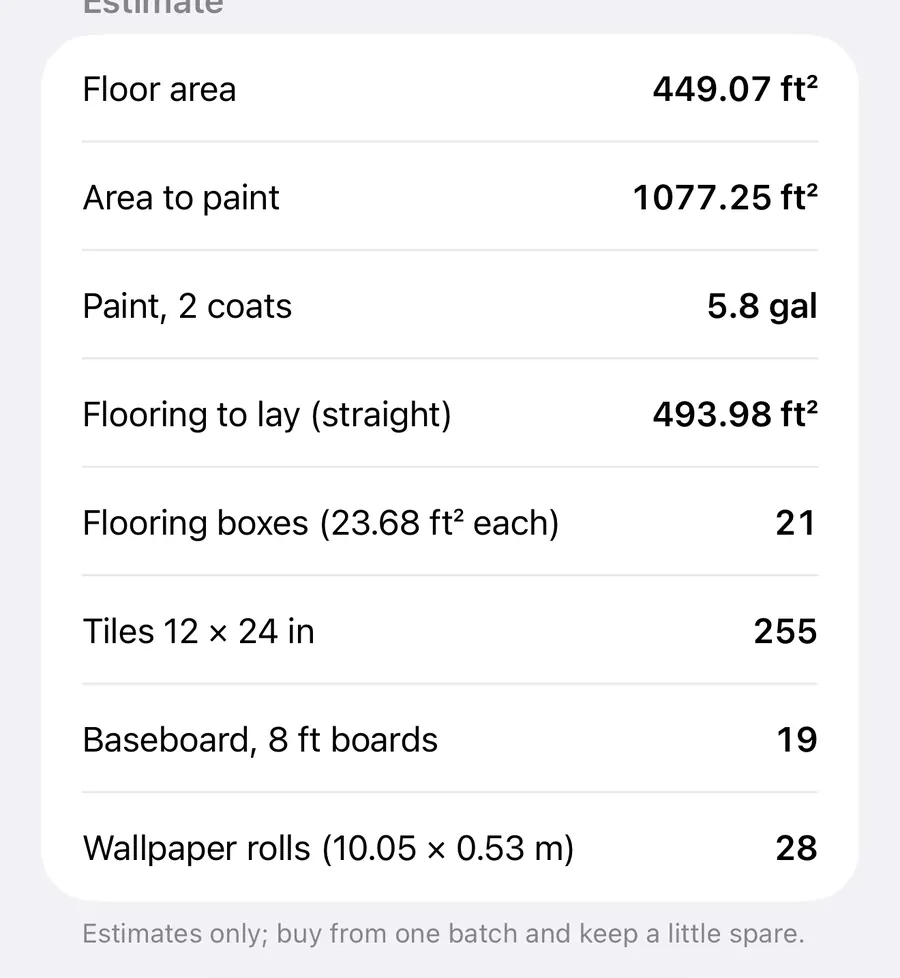
The materials calculators estimate paint, flooring, tiles, baseboard and wallpaper from sizes you type in, including the waste allowance you set. In a project, the same maths runs on your measured rooms; read more in the paint calculator and flooring and tile layout posts, or the paint, flooring and tile guide.
The area converter switches between square metres, square feet, tatami and tsubo. The psychrometrics calculator, for drying work, takes air temperature, relative humidity and altitude and gives the humidity ratio, grains per pound, dew point and air pressure. It is part of Pro.
Open a tool in one tap
You can reach the tools without opening the app first:
- The Tools widget for the Home Screen has buttons for Measure, Level, Angle and a new project. A round version fits on the Lock Screen.
- The AR tape measure and Spirit level controls can go in Control Center or on the Lock Screen.
- The Shortcuts action Open tool opens PlanSnap on the AR tape measure, the level, the angle finder or a new project.
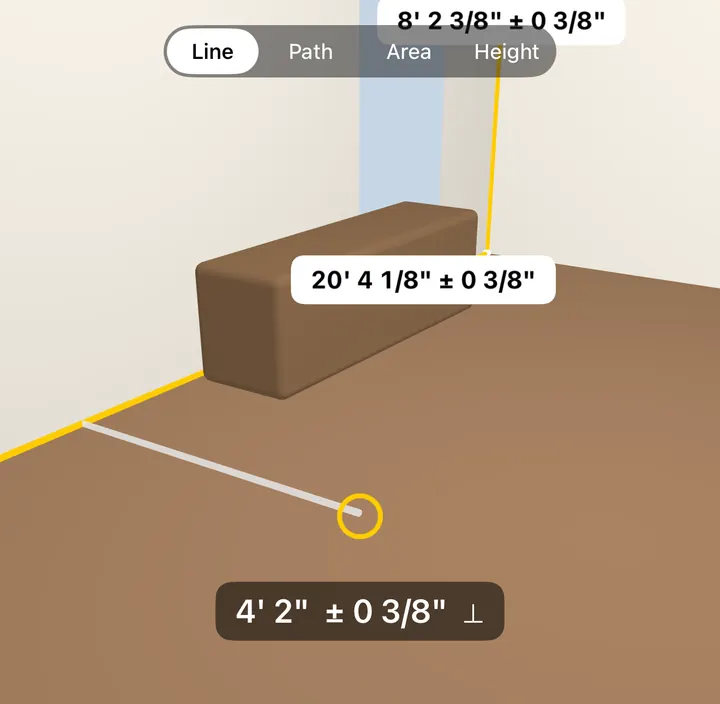
For lengths, heights and areas measured with the camera, see the AR tape measure.
Is the PlanSnap level free?
Yes. The level and angle finder are free. Saving a reading to a room in a project needs Pro.
How do I measure the angle between two surfaces?
Open the level, choose Angle, hold the phone's edge on the first surface and tap Set zero. Then hold it on the second surface. The angle and the miter for that corner appear on screen.
Does the stair calculator follow building code?
It checks the riser, tread and pitch limits you type in, and the 2 risers + 1 tread rule. You enter the limits from your local code; PlanSnap does not supply them.
Can I open the level from the Lock Screen?
Yes. Add the Spirit level control to the Lock Screen or Control Center, or use the Tools widget.
Does the level work on iPad?
It needs motion sensors. If the device has none, PlanSnap says so and the calculators still work.
Keep reading
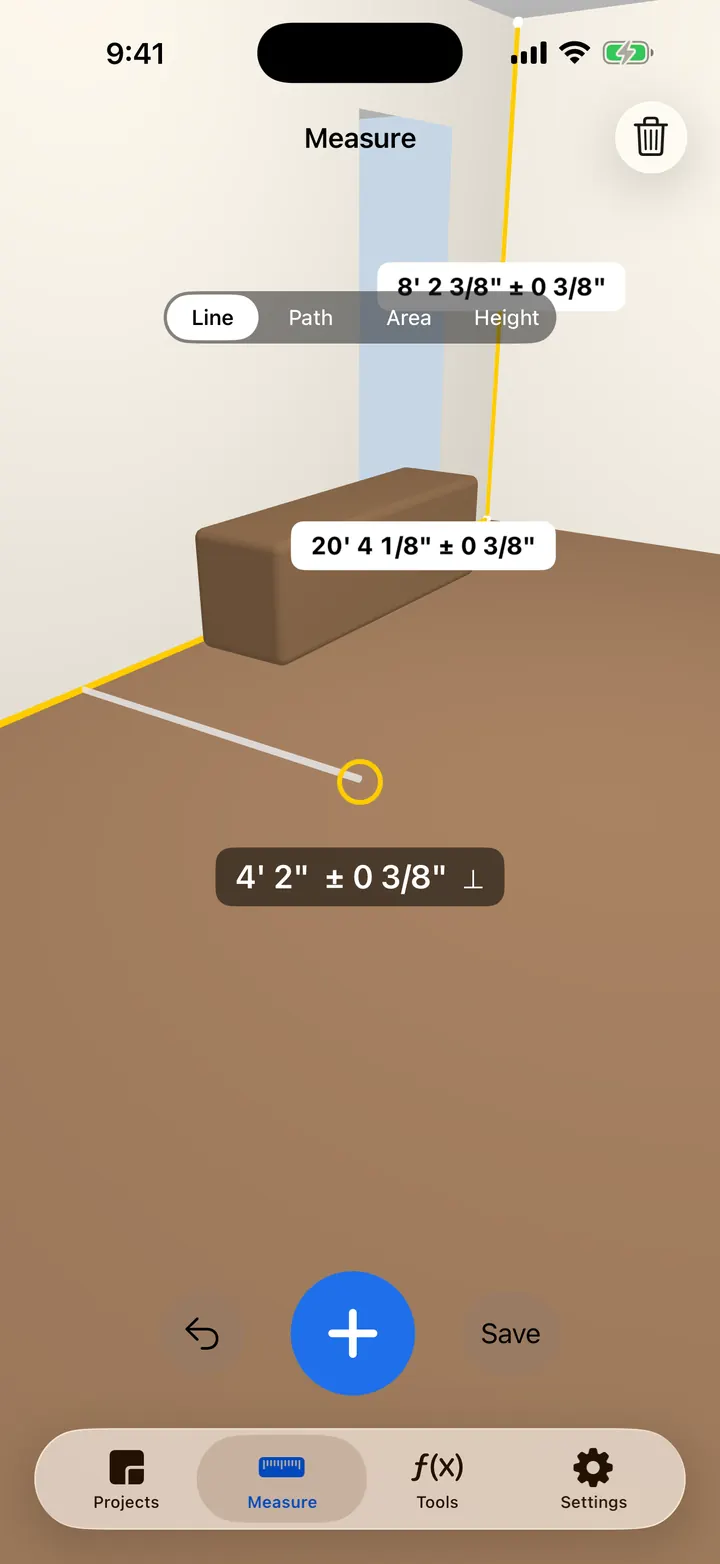
AR tape measure: measure lengths, paths, areas and heights with your iPhone
How the PlanSnap AR tape measure works: the Line, Path, Area and Height modes, the snap ring, the ± range on every length and saving measurements to a project.
Read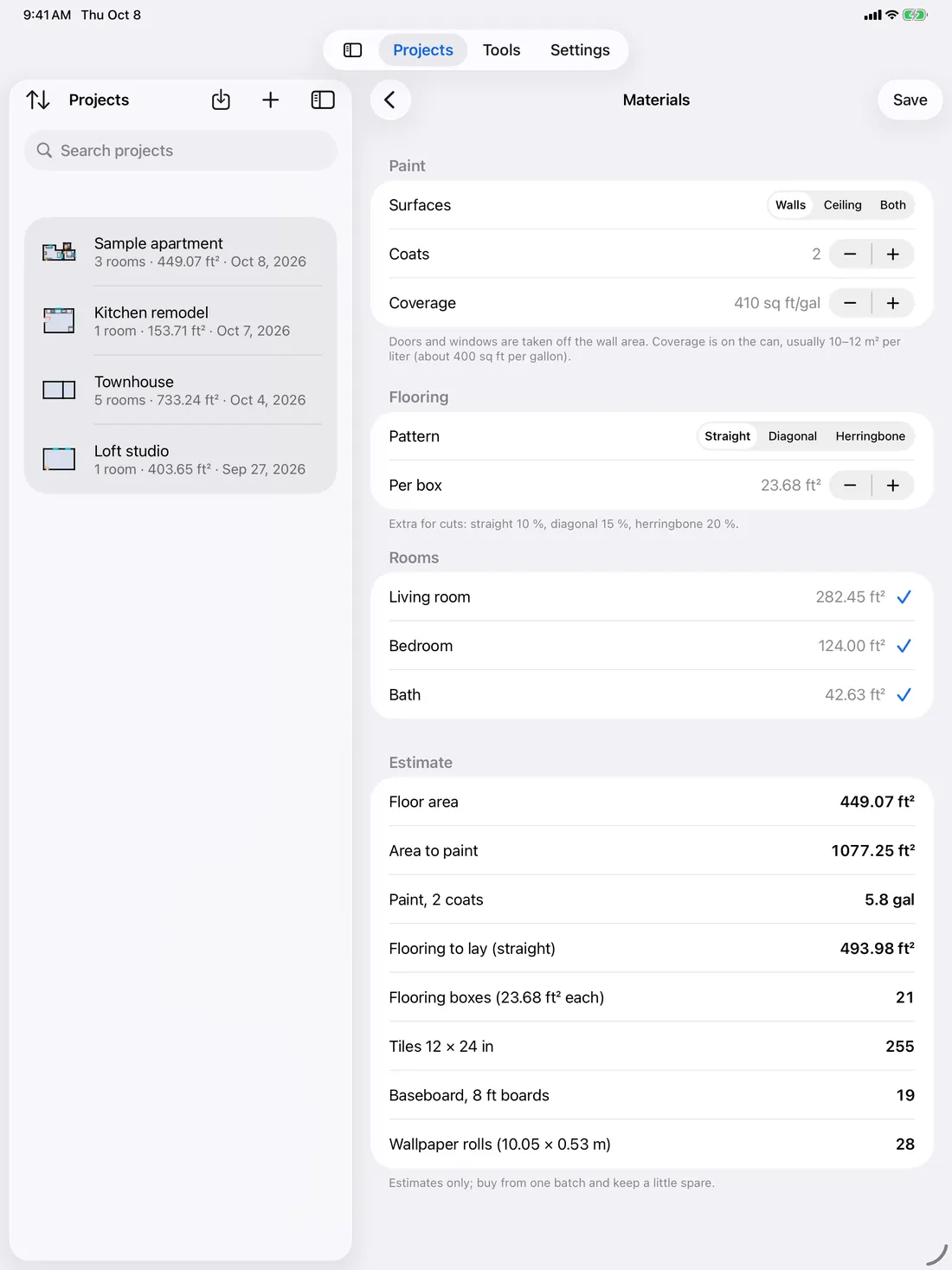
Paint calculator: how much paint a room needs, from its floor plan
How the PlanSnap paint calculator works: wall area net of doors and windows, walls or ceiling, coats and coverage, plus the Pro paint schedule with primer.
Read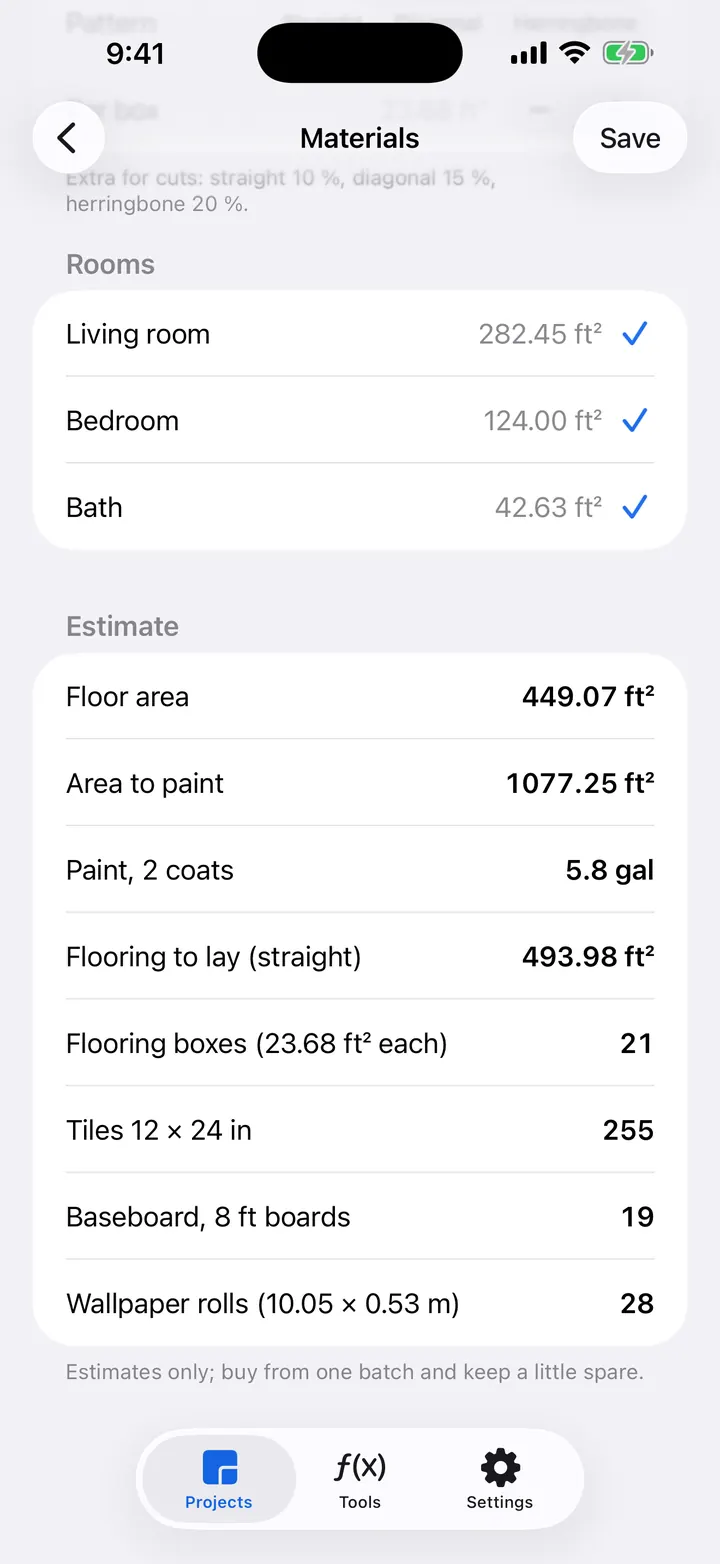
Flooring and tile calculator: boxes, waste and a tile layout with cuts
How PlanSnap estimates flooring and tile: area to lay with 10, 15 or 20 % extra, boxes to buy, and Pro tile layouts and carpet or vinyl roll cut lists.
ReadHow to estimate paint, flooring and tile from a floor plan
How PlanSnap turns measured rooms into paint, flooring, tile, baseboard and wallpaper estimates, which numbers you can change, and how much extra to buy.
Read guide