Baseboard, wallpaper and trim: boards, rolls and miter angles
How PlanSnap counts baseboard boards and wallpaper rolls from your rooms, works out drops with a pattern repeat, and gives miter saw settings for any corner.
Short answer
PlanSnap counts baseboard from the perimeter of the rooms you tick, minus the width of each door, plus 10 % for cuts, divided by the board length. It counts wallpaper rolls from the wall length, the ceiling height and the roll size. In Tools you can set your own board length, roll size and pattern repeat, and the Miter angle calculator gives the saw setting for any corner. All of this is free; saving the list and the priced shopping list are Pro.
Trim and wall coverings are the jobs where a few feet make the difference between one more trip to the store and a finished room. The numbers are all in the plan: wall lengths, door widths and the ceiling height. PlanSnap turns them into boards, rolls and angles.
Baseboard from the plan
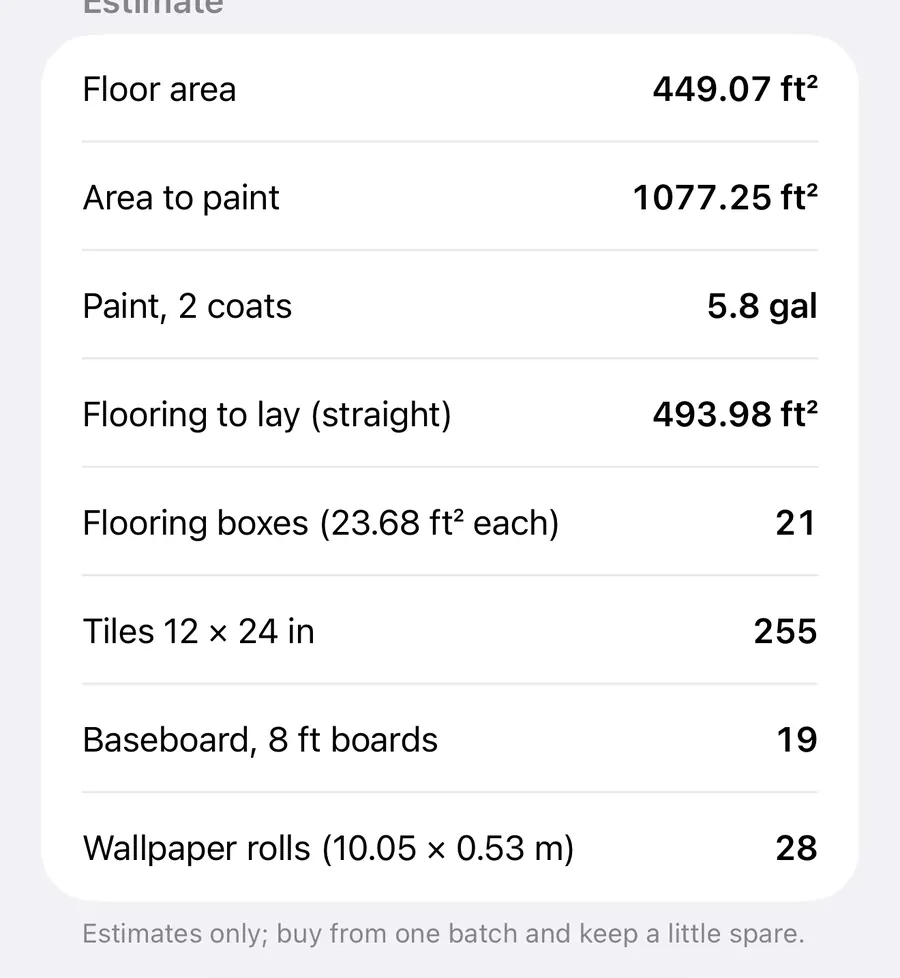
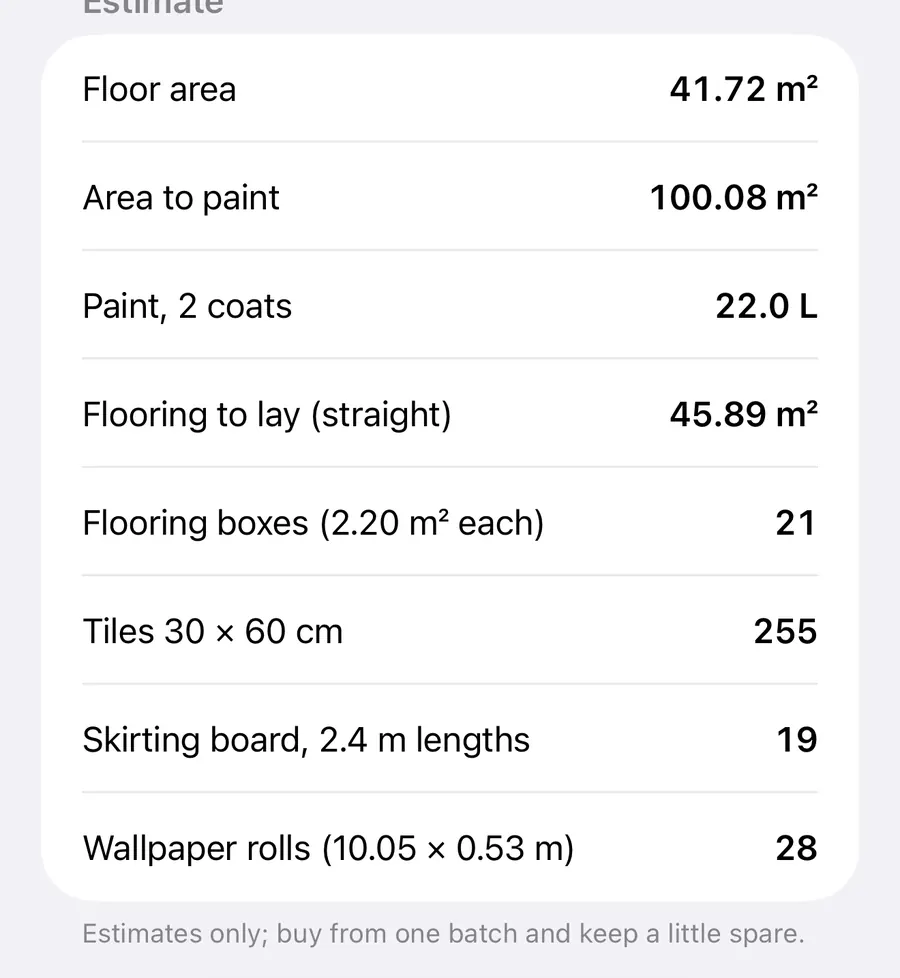
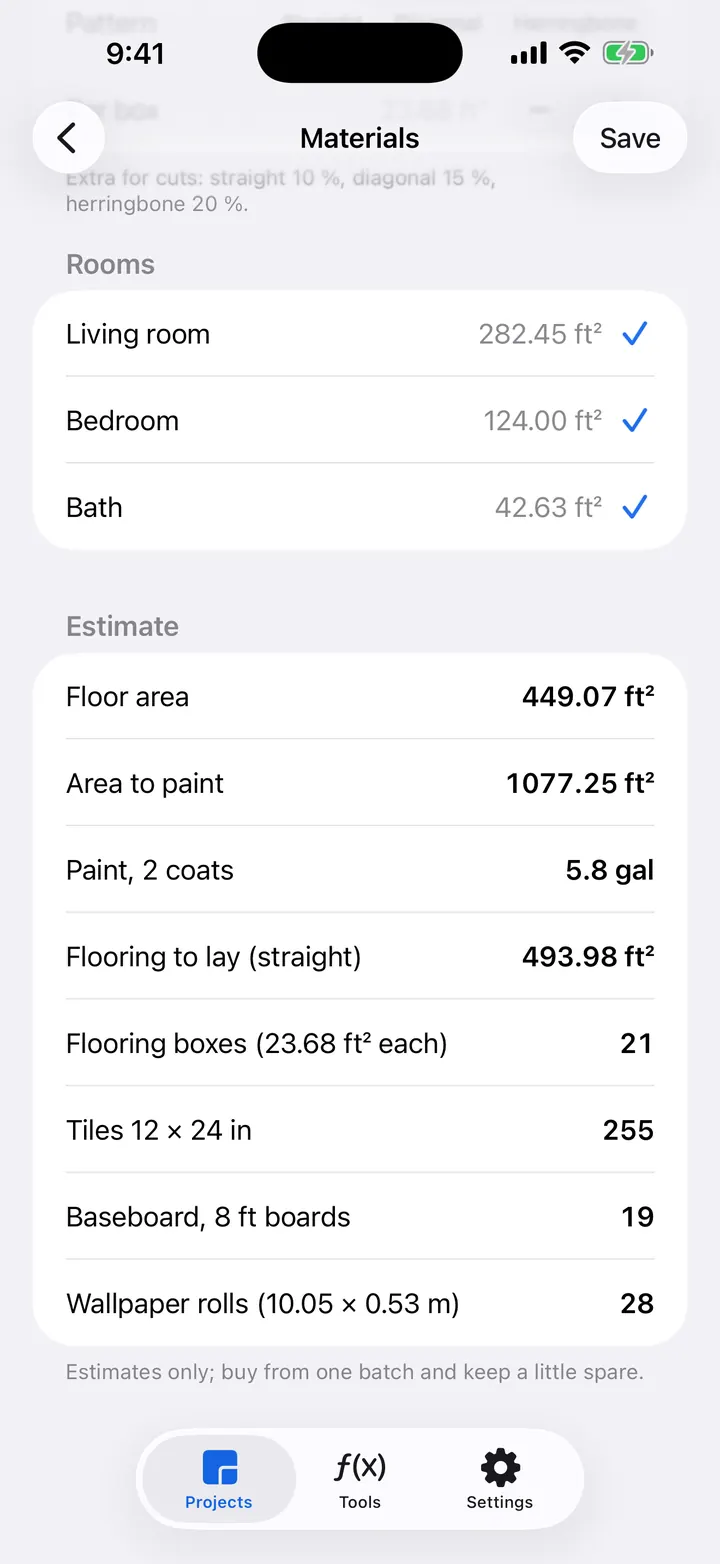
Open a project and tap the paintbrush button for Materials. Under Estimate, the baseboard row reads Baseboard, 8 ft boards with feet and inches, or Baseboard, 2.4 m boards in metric. In British English it is Skirting board, 2.4 m lengths.
The count works like this:
- Add up the perimeter of every ticked room.
- Take off the width of each door. Windows stay in, because baseboard runs under them.
- Add 10 % for cuts and joints.
- Divide by the board length and round up.
For a 12 × 14 ft bedroom with one 3 ft door, that is 52 ft of wall minus 3 ft, which is 49 ft (14.9 m). Add 10 % and you need 53.9 ft, so seven 8 ft boards. The sample apartment comes to 19 boards for its three rooms.
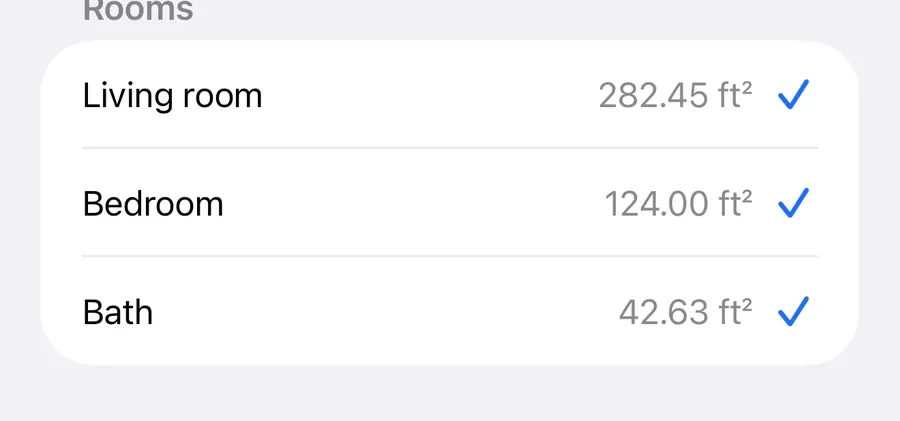
Rooms you untick under Rooms drop out, so you can price a bathroom with tiled walls separately.
Your own board length
The Materials screen uses the common 8 ft (2.4 m) board. If your supplier sells 12 ft or 16 ft lengths, open the Tools tab and use the Baseboard calculator under Materials. It asks for the Perimeter, the Door widths in total, the Board length and the Extra, which starts at 10 %, and gives the number of Boards. You can copy the perimeter from the room's details in the editor.
Wallpaper rolls
The last row on the Materials screen is Wallpaper rolls (10.05 × 0.53 m), the standard European roll of about 33 ft by 21 in. It is a quick first figure for papering every wall of the ticked rooms. It uses the average ceiling height plus 4 in (10 cm) for trimming, and the full wall length without taking off doors or windows, so it errs on the generous side.
For a real order, use the Wallpaper calculator in Tools, where you set the details on the label:
| Input | What to enter |
|---|---|
| Wall width to cover | The length of wall you are papering |
| Wall height | Floor to ceiling, or to the picture rail |
| Roll length | From the label, 10.05 m (about 33 ft) to start |
| Roll width | From the label, 0.53 m (about 21 in) to start |
| Pattern repeat | From the label; 0 for a plain paper |
It answers with Rolls, Drops (the strips you hang), the Drop length and the Drops per roll. Each drop is the wall height plus 4 in (10 cm), rounded up to a whole pattern repeat so the pattern lines up across the seams.
Count wallpaper for a feature wall
- In the room editor, read the length of the wall you want to paper.
- Open the Tools tab and choose Wallpaper.
- Enter the Wall width to cover and the Wall height.
- Copy the Roll length, Roll width and Pattern repeat from the roll's label.
- Read Rolls, and check Drops per roll to see how much each roll wastes.
Take a wall 13 ft (4 m) wide and 7 ft 10 in (2.4 m) high. With a plain paper each drop is about 8 ft 2 in (2.5 m), a roll gives four drops, the wall needs eight, so two rolls. With a 25 in (64 cm) pattern repeat the drop grows to about 8 ft 5 in (2.56 m), a roll gives only three, and you need three rolls. The repeat is often the reason a calculator without it comes up short.
Miter angles for trim
Baseboard, crown and picture frames all meet at corners, and not every corner is 90°. The Miter angle calculator in Tools, under Trade calculators, takes the Corner angle and the number of Pieces meeting:
- Miter saw setting: the angle to set on the saw, for example 45° for a 90° corner or 22.5° for a 135° bay window corner.
- Cut angle on each piece: half the corner angle, measured on the piece itself.
- With more than two pieces, as in a hexagonal frame, it adds the Polygon corner and the Polygon saw setting.
To read an angle you cannot measure easily, the Angle finder under Measure in Tools uses the phone's motion sensors and shows the miter for the angle it reads, with a button to set zero first.
Save the list and take it shopping (Pro)
With Pro, the Save button stores the material list with the project, with the date it was saved. The paywall puts it as "Save paint, flooring, tiles and baseboard estimates with each room." The PDF floor plan then adds a Materials table with the same rows.
Pro also adds Estimate and quote, where baseboard appears on the shopping list as a number of pieces next to paint and flooring. You can add wallpaper from your price list and share the list as Shopping list CSV. See estimates and quotes for how that works, and the flooring and tile calculator and paint calculator for the rest of the room, or the guide to estimating materials for a room.
How many baseboard boards do I need for a room?
Take the room's perimeter, subtract the width of each door, add 10 % for cuts and divide by the board length, then round up. PlanSnap does this from the plan and shows it on the Materials screen.
Does PlanSnap subtract doors and windows for baseboard?
It subtracts doors, because baseboard stops at a door frame. Windows are left in, because baseboard runs along the floor under them.
How do I account for pattern repeat when ordering wallpaper?
Enter the pattern repeat from the label in the Wallpaper calculator in Tools. Each drop is rounded up to a whole repeat, which can reduce the drops you get from each roll.
What angle do I set on the miter saw for a corner?
Half of 180° minus the corner angle: 45° for a 90° corner, 22.5° for a 135° corner. The Miter angle calculator in Tools works it out for any corner.
Are the baseboard and wallpaper calculators free?
Yes. The Materials screen and the calculators in Tools are free. Saving the list with the project and the priced shopping list need Pro.
Keep reading
Flooring and tile calculator: boxes, waste and a tile layout with cuts
How PlanSnap estimates flooring and tile: area to lay with 10, 15 or 20 % extra, boxes to buy, and Pro tile layouts and carpet or vinyl roll cut lists.
Read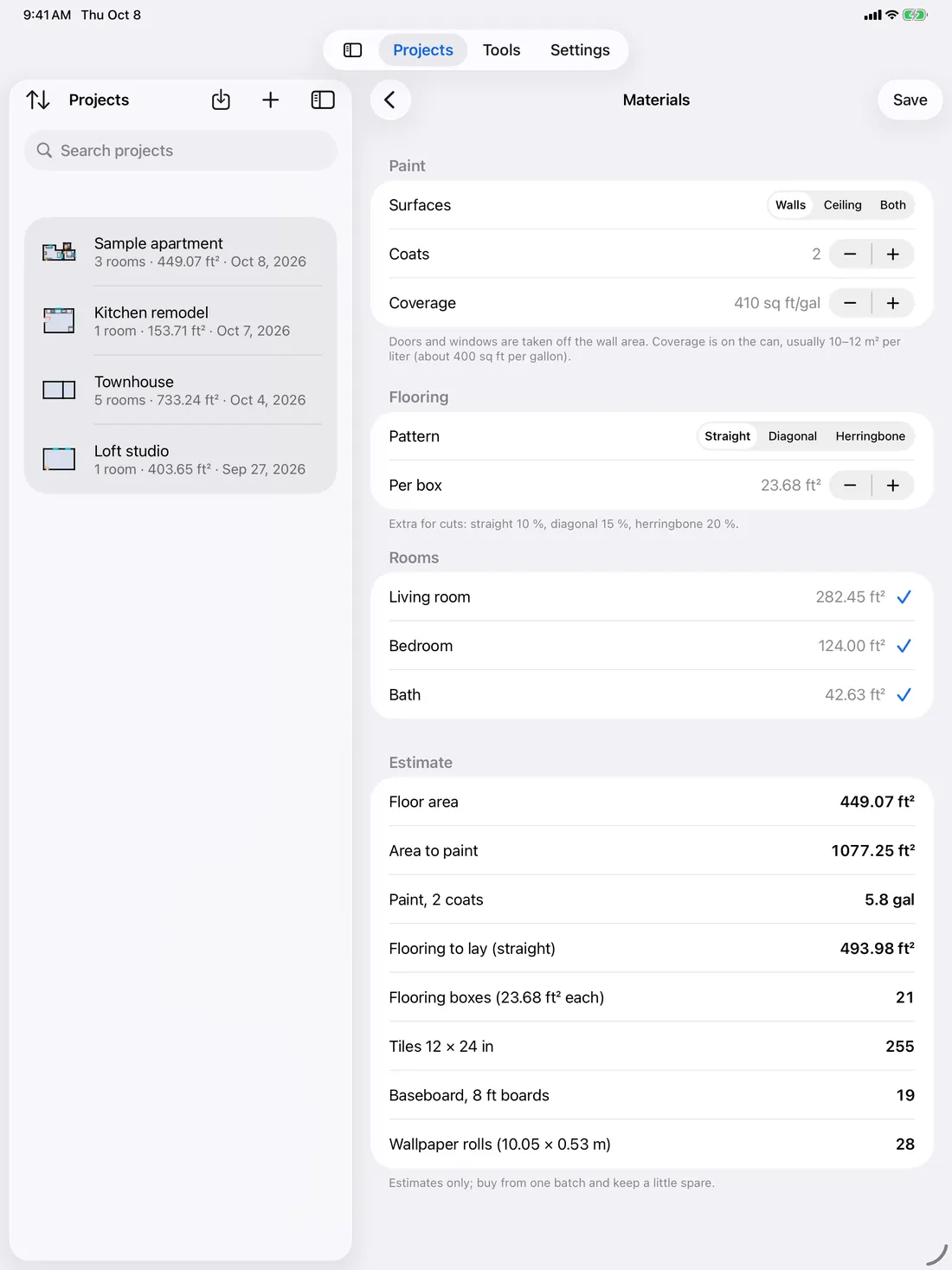
Paint calculator: how much paint a room needs, from its floor plan
How the PlanSnap paint calculator works: wall area net of doors and windows, walls or ceiling, coats and coverage, plus the Pro paint schedule with primer.
Read
Estimates and quotes: from floor plan to a branded quote PDF
How PlanSnap Pro turns a floor plan into a priced shopping list and a quote: your price list, labour lines, discount and tax, then a PDF with your company logo.
ReadHow to estimate paint, flooring and tile from a floor plan
How PlanSnap turns measured rooms into paint, flooring, tile, baseboard and wallpaper estimates, which numbers you can change, and how much extra to buy.
Read guide