Estimates and quotes: from floor plan to a branded quote PDF
How PlanSnap Pro turns a floor plan into a priced shopping list and a quote: your price list, labour lines, discount and tax, then a PDF with your company logo.
Short answer
With PlanSnap Pro, the Estimate and quote screen fills a shopping list with paint, flooring and baseboard worked out from the rooms you measured, and prices each line from your own price list. Add labour, a client, a discount and tax, then share the quote as a PDF with your logo, or as CSV. Quantities come from the plan, so check them on site before you order.
A quote usually starts with a tape, a notepad and a spreadsheet. If you have already measured the rooms in PlanSnap, the hard part is done: the plan knows the wall area, the floor area and the length of every wall. Estimate and quote picks up from there.
Three things to set up once
Everything here is part of Pro and lives in Settings, so you fill it in once and every project uses it.
Price list
Open Settings › Price list and choose the Currency: your local one comes first, then the common ones such as USD, EUR, GBP and CAD. Tap + to add a price with its Name, Category, Unit and Unit price. Units are area, length, piece, litre, box, roll and hour.
Each price can be linked to a material under Prices: Paint, Flooring, Tiles, Baseboard or Wallpaper. As the screen says, this "links this line to the matching suggestion on the shopping list", so the paint you sell is used for the paint the plan needs.
If your prices already live in a spreadsheet, open the more menu and choose Import CSV…. The file needs the columns Name, Category, Unit, Unit price and Material. A header row is optional, commas or semicolons both work, and decimal commas are fine. You then choose Add to the list or Replace the list. Export CSV writes the list back out.
Company profile
Settings › Company profile holds your logo, company name, phone, email, website, tax number, address and an accent colour. It is "Shown on the PDF cover, in the page footer and on quotes."
Paper size
The quote PDF uses the same paper as the project: Letter or A4.
Build a quote
Open a project and choose Estimate and quote from its tools. The first time, PlanSnap suggests the shopping list from the plan:
| Line | Worked out from |
|---|---|
| Paint | Wall area of every room, net of doors and windows, in litres |
| Flooring | Floor area plus the extra for the laying pattern |
| Baseboard | Perimeter minus doors, in pieces |
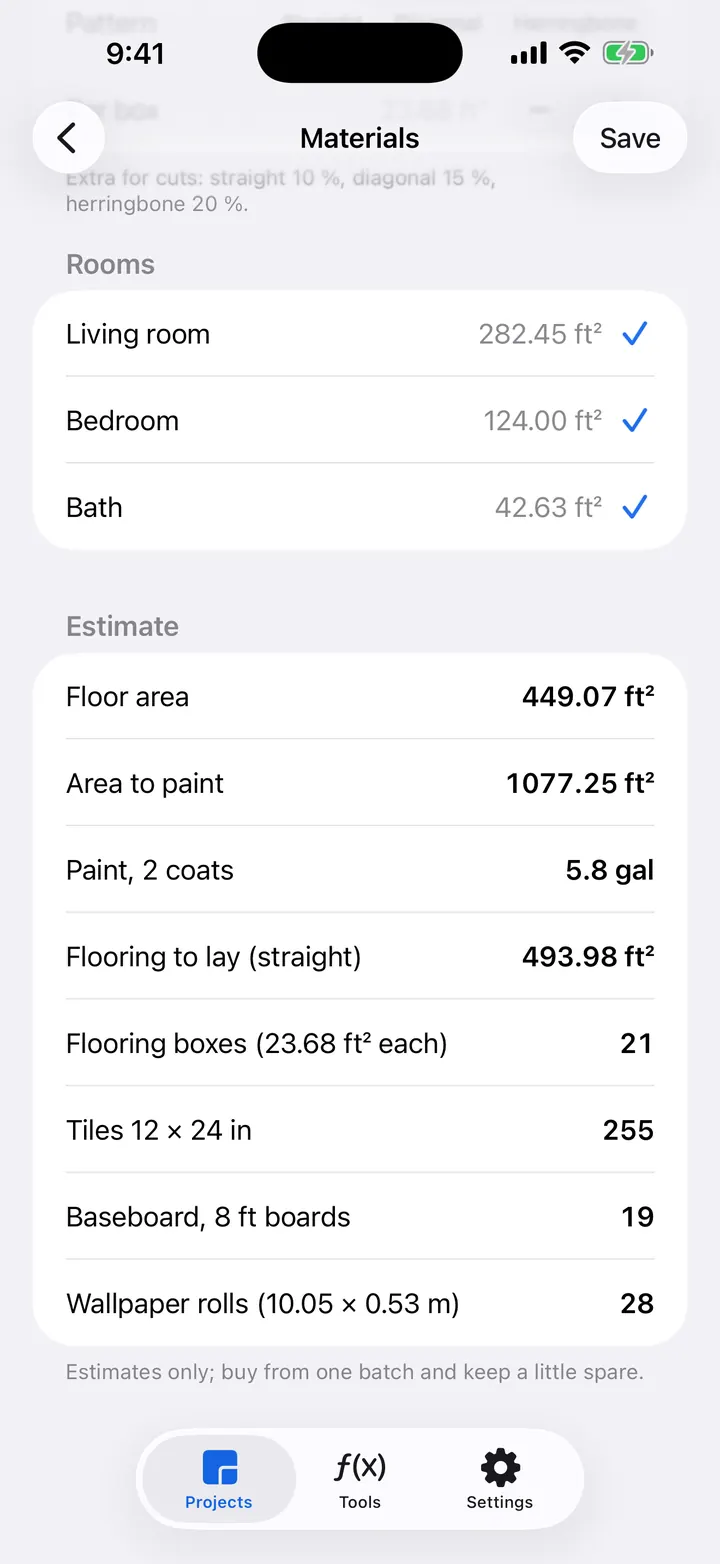
It uses the settings you saved on the Materials screen, such as coats, coverage and the flooring pattern. For how those numbers are made, see the paint calculator, flooring and tile calculator and baseboard and wallpaper.
Make a quote for a client
- Open the project and tap Estimate and quote.
- Check the suggested lines under Materials. Tap a line to change the quantity, unit or price.
- Tap + and choose From the price list, Material line or Labour line to add the rest of the job.
- Under Quote, enter the Client, Client address, Valid for (days), Discount %, Tax % and any Notes.
- Check the Totals.
- Tap the share button and choose Quote PDF.
Lines, labour and updates
Every line has a Name, Quantity, Unit, Unit price, a Kind (material or labour) and an optional Note. Labour lines, such as hours for prep or a fixed price for fitting, appear in their own Labour section.
If you change the plan, tap + and Update quantities from the plan. The suggested lines are refreshed and everything you added yourself stays. If you change your prices, Update prices from the price list reprices the lines. Quotes copy the prices when they are made, so editing the price list later does not quietly change a quote you already sent.
Totals
The Totals section adds up Materials and Labour into a Subtotal, takes off the Discount, then applies Tax to what is left and shows the Total. The tax rate is whatever you enter. PlanSnap does not know local tax rules, so check the rate that applies to you.
Each quote gets a number made from the date and the project, such as Q-20261011-AB12, which you can change.
The quote PDF
Quote PDF produces a document ready to send:
- Your logo and company details at the top, and your company footer on every page
- Quote, with the number, the date, a Valid until date and the project name
- A For block with the client's name and address
- Materials and Labour tables with Item, Quantity, Unit price and Amount
- Subtotal, discount and tax with their percentages, and the total in your accent colour
- Your notes and a short line about the measurements
The share button also offers Quote CSV, for your accounts or a spreadsheet, and Shopping list CSV, to send to a supplier or take to the store.
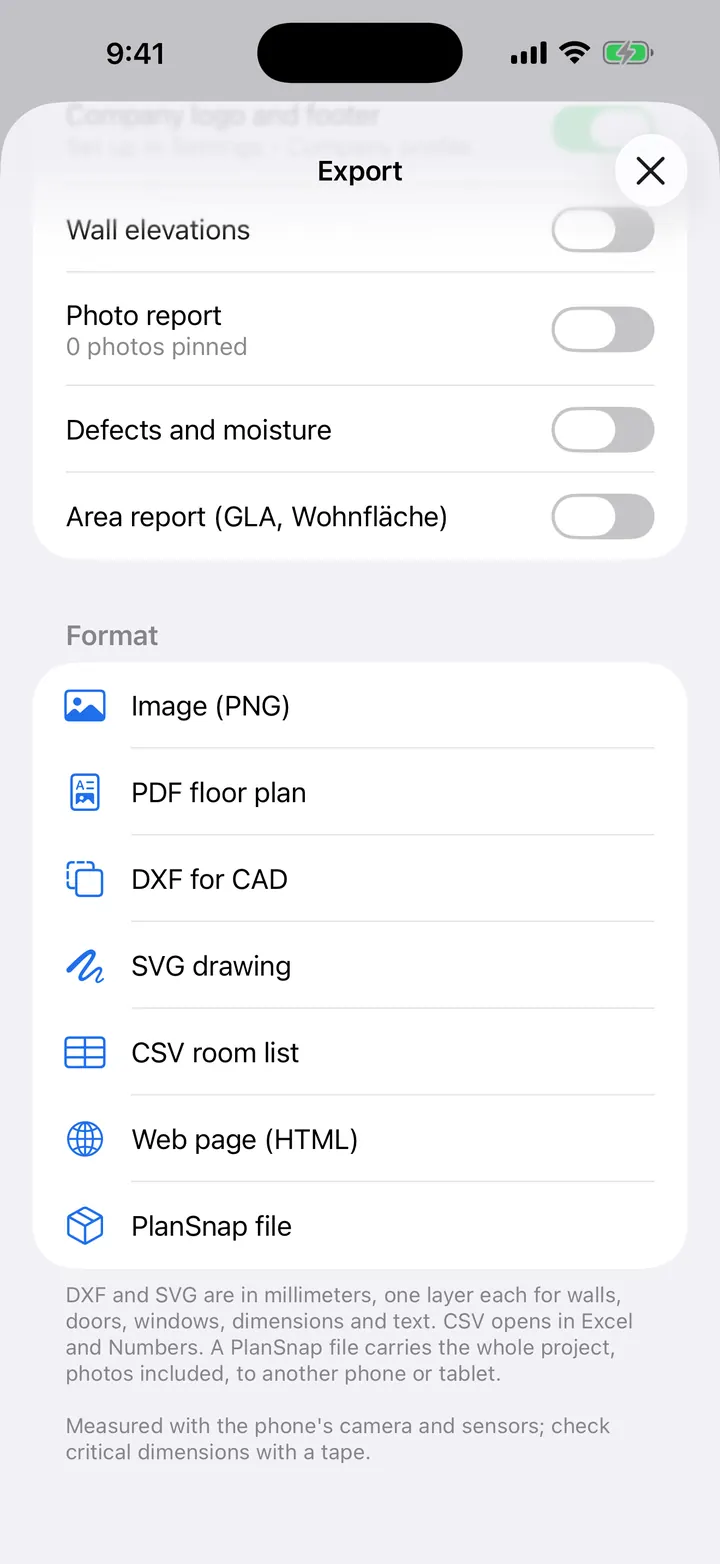
The PDF floor plan from Export can carry the same branding: turn on Company logo and footer, then send the plan and the quote together. See the export guide for every format.
Can I make a quote from a floor plan in PlanSnap?
Yes, with Pro. Estimate and quote suggests paint, flooring and baseboard from the measured rooms, prices them from your price list, and lets you add labour, discount and tax before sharing a quote PDF.
Can I import my price list from a spreadsheet?
Yes. In Settings › Price list, choose Import CSV… with the columns Name, Category, Unit, Unit price and Material. You can add the prices to your list or replace it.
Does the quote PDF show my logo?
Yes. Add your logo, contact details and an accent colour in Settings › Company profile. They appear at the top of the quote and in the footer of every page.
How is tax worked out on a quote?
The discount comes off the subtotal first, then the tax rate you enter is applied to the rest. Check which rate applies to your work; PlanSnap does not set it for you.
What happens to a quote if I change my prices later?
Nothing, until you choose Update prices from the price list. Quotes copy the prices when they are made.
Keep reading
Paint calculator: how much paint a room needs, from its floor plan
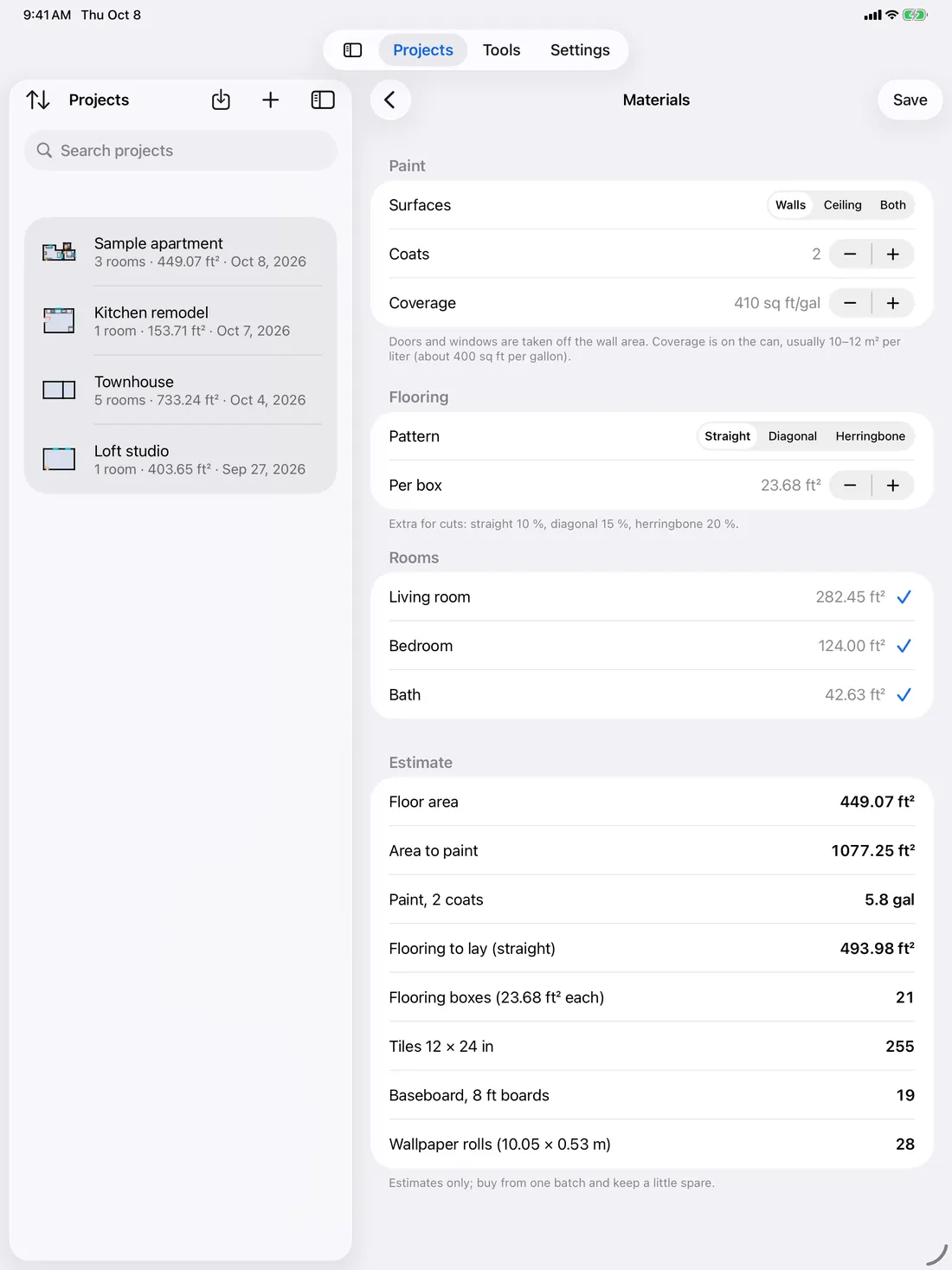
How the PlanSnap paint calculator works: wall area net of doors and windows, walls or ceiling, coats and coverage, plus the Pro paint schedule with primer.
ReadFlooring and tile calculator: boxes, waste and a tile layout with cuts
How PlanSnap estimates flooring and tile: area to lay with 10, 15 or 20 % extra, boxes to buy, and Pro tile layouts and carpet or vinyl roll cut lists.
Read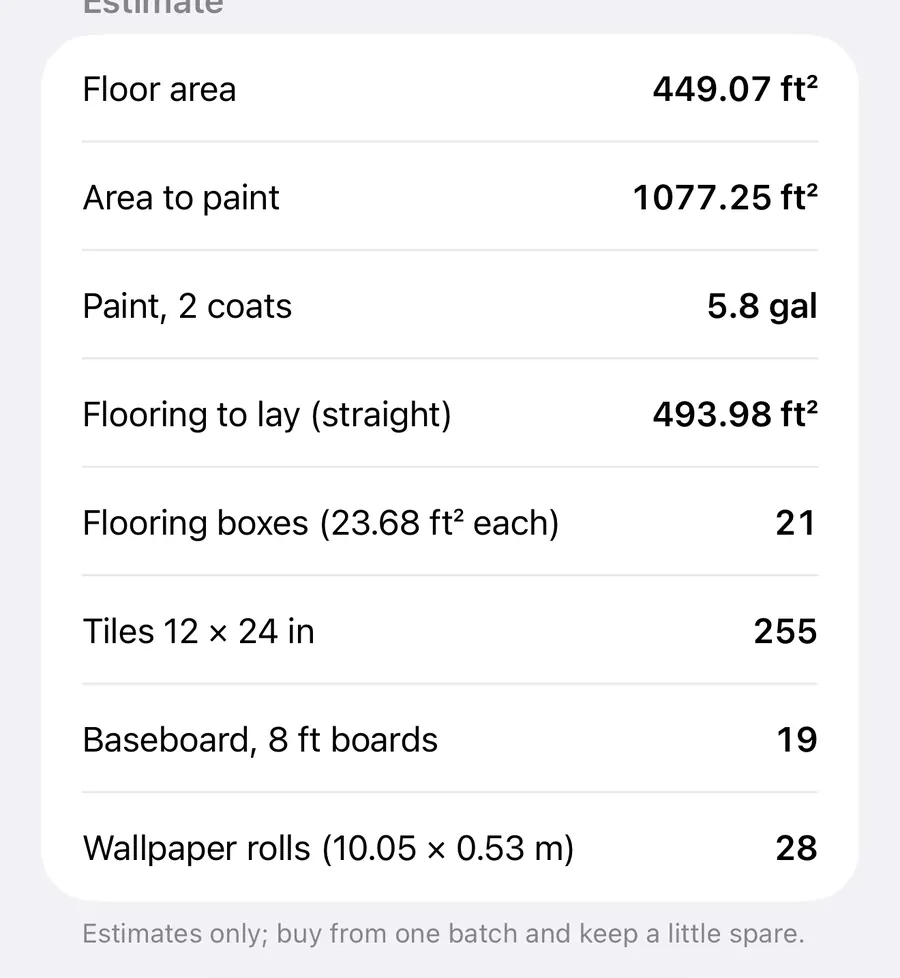
Baseboard, wallpaper and trim: boards, rolls and miter angles
How PlanSnap counts baseboard boards and wallpaper rolls from your rooms, works out drops with a pattern repeat, and gives miter saw settings for any corner.
ReadWhich floor plan file should you send: PDF, DXF, SVG or CSV?
PlanSnap exports a floor plan as PNG, PDF, DXF, SVG, CSV, a web page or a PlanSnap file. What each format is for, who can open it and which ones are free.
Read guide