Projects, sharing and iPad: keep every home in one place
How PlanSnap projects work: the sample apartment, search and sort, rename and duplicate, sharing the PlanSnap file, drag and drop and the iPad split view.
Short answer
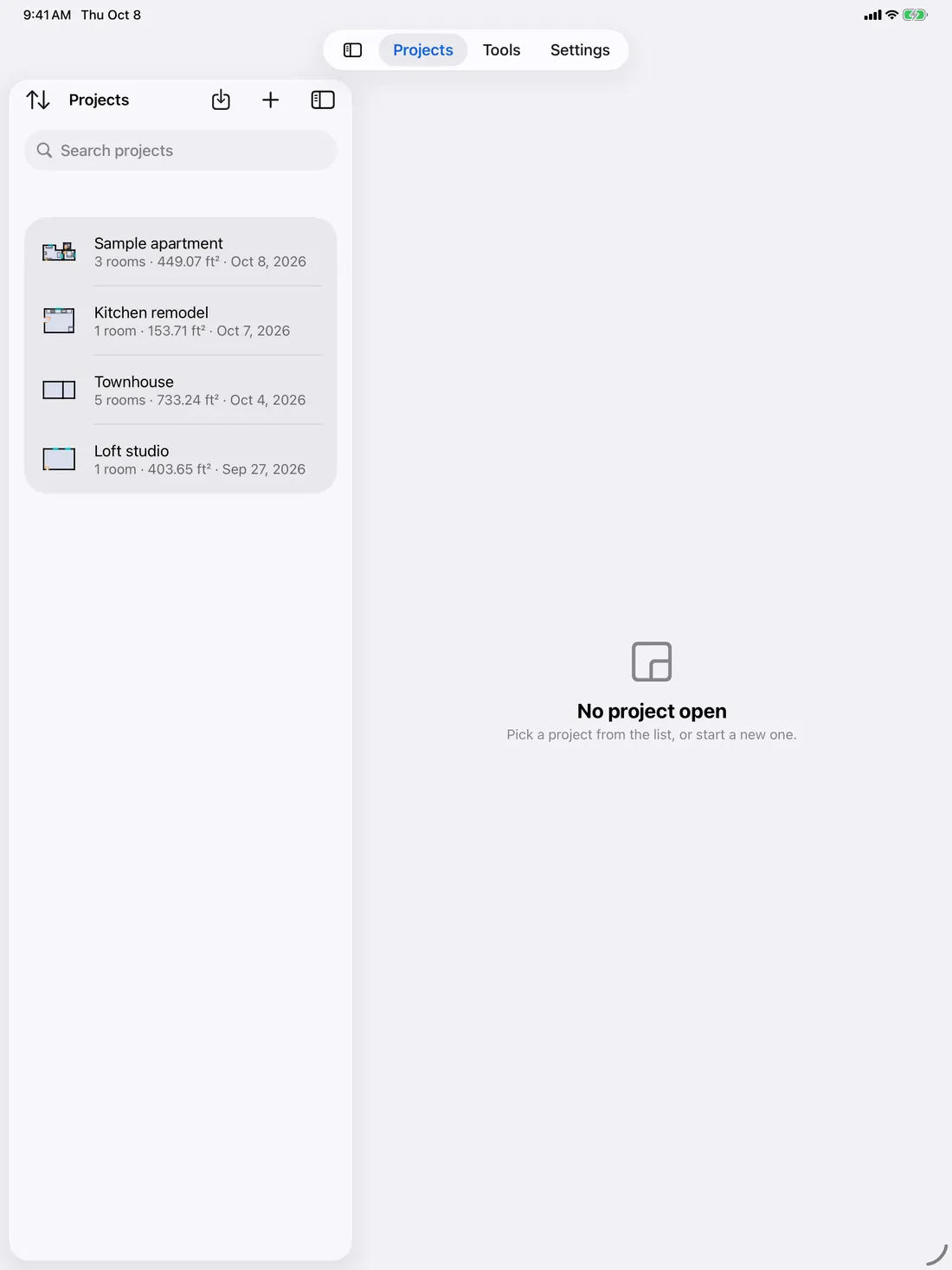
In PlanSnap every home, flat or remodel is a project that holds its rooms, floors, measurements and photos. The Projects tab lists them with a small plan picture, lets you search and sort, and a touch and hold renames or duplicates one. To hand a project to someone else, export it as a PlanSnap file. On iPad the list sits beside the open project, and you can drag a project into Files or Mail.
A floor plan is only useful if you can find it again next month, send it to the person doing the work, and open it on a bigger screen when you sit down to plan. PlanSnap keeps all of that in the Projects tab, and everything is stored as files on your device. There is no account and no PlanSnap server.
What a project holds
A project is the folder for one place: its floors and rooms, the doors and windows, saved AR measurements with their photos, and anything you add later such as material settings or an estimate. Each row in the list shows the project name, the number of rooms, the total area and the date it was last changed, next to a small drawing of the first floor that has rooms.
The sample apartment
The first time you open the app, PlanSnap adds a Sample apartment: an L-shaped living room, a bedroom and a bath with doors and windows. It is there so you can try the room editor, the paint calculator and the exports before you measure anything, including on a device without AR.
The sample does not count against the free plan. You can delete it like any other project, and it does not come back.
Find, sort and tidy up
The search field at the top filters by name as you type. It ignores capitals and accents, and when you type two words it shows the projects whose name contains both, so "kitchen smith" finds "Smith – kitchen remodel".
The sort button at the top left switches between Name (A to Z) and Date modified (newest first). Your choice is remembered.
Touch and hold a project to get two actions:
| Action | What it does |
|---|---|
| Rename | Changes the project name |
| Duplicate | Makes a full copy named "… copy", photos included, with new ids so the two never get mixed up |
To delete a project, swipe left on it and tap Delete, then Delete project. PlanSnap warns that its rooms and measurements are deleted from the device, so export a PlanSnap file first if you might need it again.
Share a project as a PlanSnap file
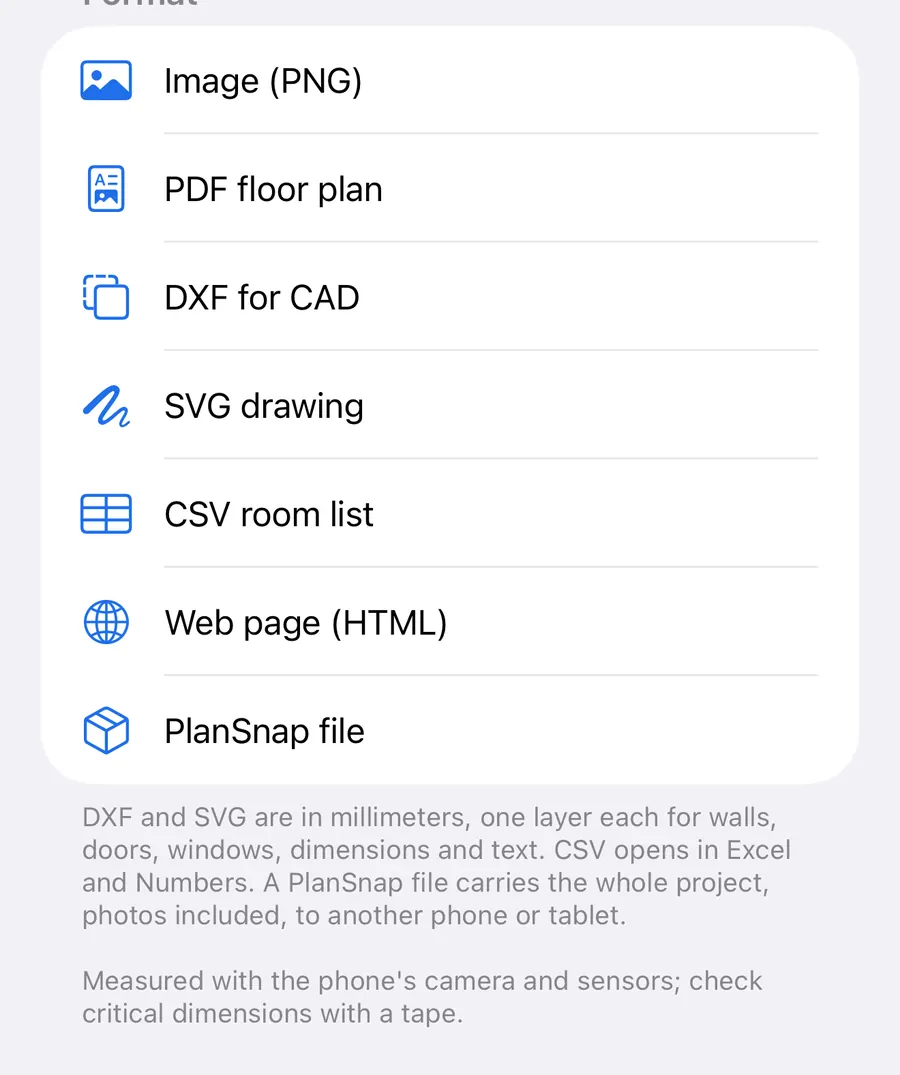
The PlanSnap file is the whole project in one file: floors, rooms, measurements and photos. The export sheet puts it plainly: "A PlanSnap file carries the whole project, photos included, to another phone or tablet." It is the way to move a job to a new phone, hand it to a colleague who also uses PlanSnap, or keep a backup in Files.
Send a project to another device
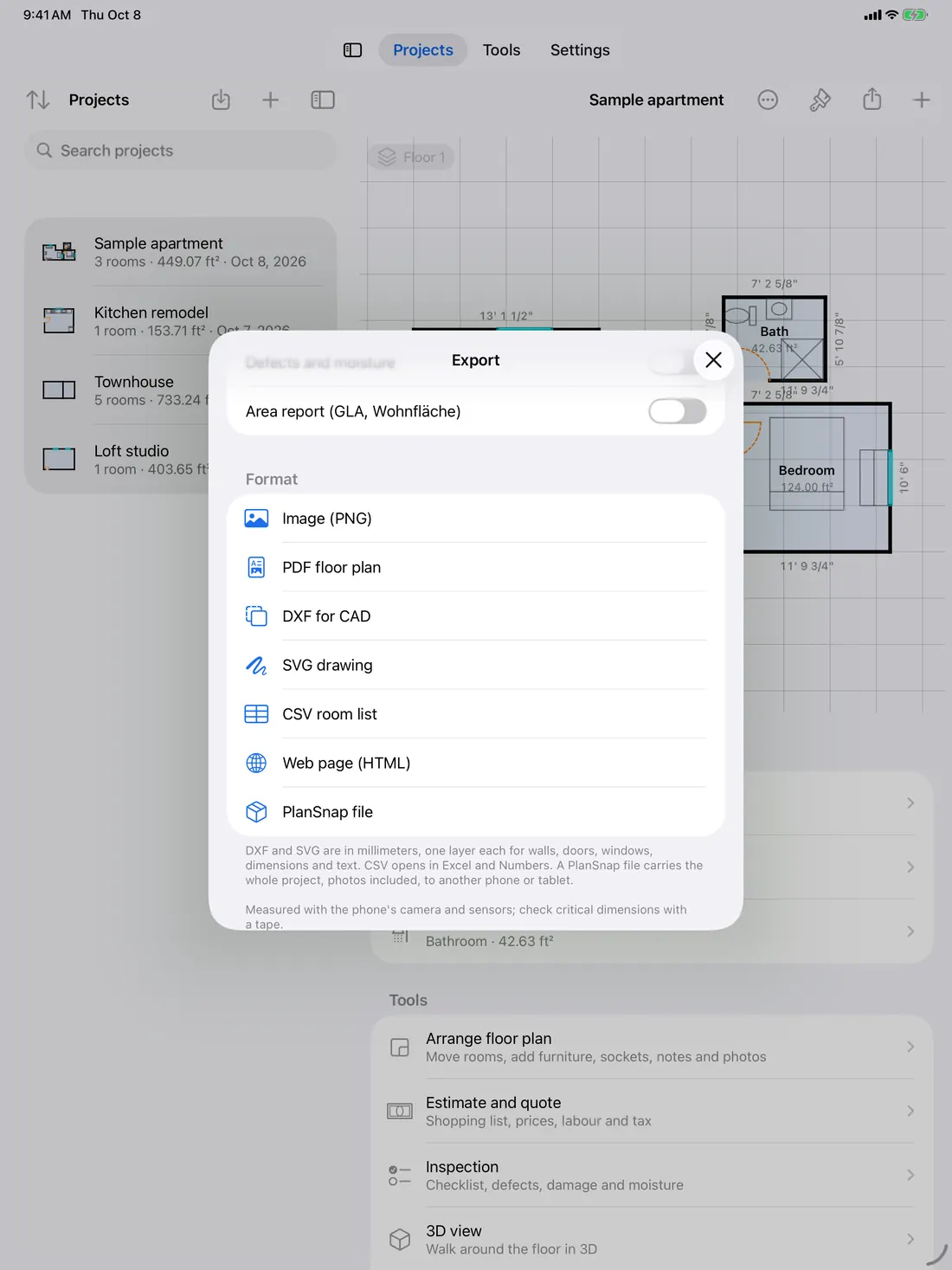
- Open the project and tap the share button to open Export.
- Scroll to Format and choose PlanSnap file.
- Pick where it goes in the share sheet: AirDrop, Mail, Messages or Save to Files.
- On the other device, open the file from Files, Mail or AirDrop. PlanSnap imports it as a new project and opens it.
- Alternatively, tap the Import button at the top of the Projects list and pick the file.
The PlanSnap file is free to export on any plan. Importing one creates a new project, so on the free plan it needs a free project slot; if you already have your one free project, PlanSnap offers Pro first. If a file is damaged or comes from a newer version of the app, you see "Couldn't open this file" and nothing in your list changes.
If you need a file for someone who does not use PlanSnap, pick a different format on the same sheet: a PNG image, a PDF floor plan, or DXF, SVG and CSV for CAD and spreadsheets.
PlanSnap on iPad
On iPad, the four tabs (Projects, Measure, Tools and Settings) sit at the top of the screen and can turn into a sidebar. The Projects tab becomes a split view: the list on the left and the open project on the right. Before you pick one, the right side says "No project open". The open project stays highlighted in the list as you move between them.
Drag and drop
On iPad you can drag a project row out of the list and drop it into Files, Mail or another app that accepts files. PlanSnap packs it into a PlanSnap file at that moment, named after the project. It works the other way too: drag PlanSnap files from Files onto the project list to import them. A tip in the list reminds you: "Touch and hold a project to rename or duplicate it, or drag it into Files or Mail to share the PlanSnap file."
Keyboard and multitasking
With a keyboard attached, Command-N starts a new project, Command-E opens Export and Shift-Command-M opens Materials in an open project. In Split View or Slide Over, when PlanSnap is narrow, it falls back to the iPhone layout: the list first, with the project pushed on top.
Other ways back into a project
Projects and rooms appear in Spotlight search, and a project you are looking at can be continued on another device through Handoff. Touch and hold the app icon for quick actions: New project, Tools and your most recent project. For arranging several rooms into one plan, see arranging rooms and floors, and for getting the measurements right in the first place, the guide to measuring a room.
Does the sample apartment count as my free project?
No. The sample does not count against the free plan, so you still have one project of your own with one room. If you delete the sample, it does not come back.
How do I send a floor plan project to another iPhone or iPad?
Open the project, tap the share button, choose PlanSnap file and send it by AirDrop, Mail or Messages, or save it to Files. Opening the file on the other device imports it as a new project with its photos.
Can I back up my PlanSnap projects?
Yes, by exporting each project as a PlanSnap file and saving it to Files or another storage app. There is no automatic cloud backup inside PlanSnap.
Why does importing a project ask for Pro?
An imported project counts like a new one. On the free plan you can have one project besides the sample, so if that slot is used, importing needs Pro or deleting a project first.
Does PlanSnap work on iPad?
Yes. On iPad the list and the open project sit side by side, the tabs can become a sidebar, and you can drag projects in and out as PlanSnap files. Room capture and the AR ruler work on iPads that support ARKit.
Keep reading
DXF, SVG and CSV export: take your PlanSnap floor plan into CAD and spreadsheets
How PlanSnap exports floor plans as DXF for CAD, layered SVG drawings, a CSV room list and an offline web page, with units, layers and what each file holds.
Read
PlanSnap Free vs Pro: what you can do without paying and what Pro adds
What the free PlanSnap plan includes, from unlimited AR measuring to one room and PNG export, what Pro unlocks, how the trial works and how to restore Pro.
Read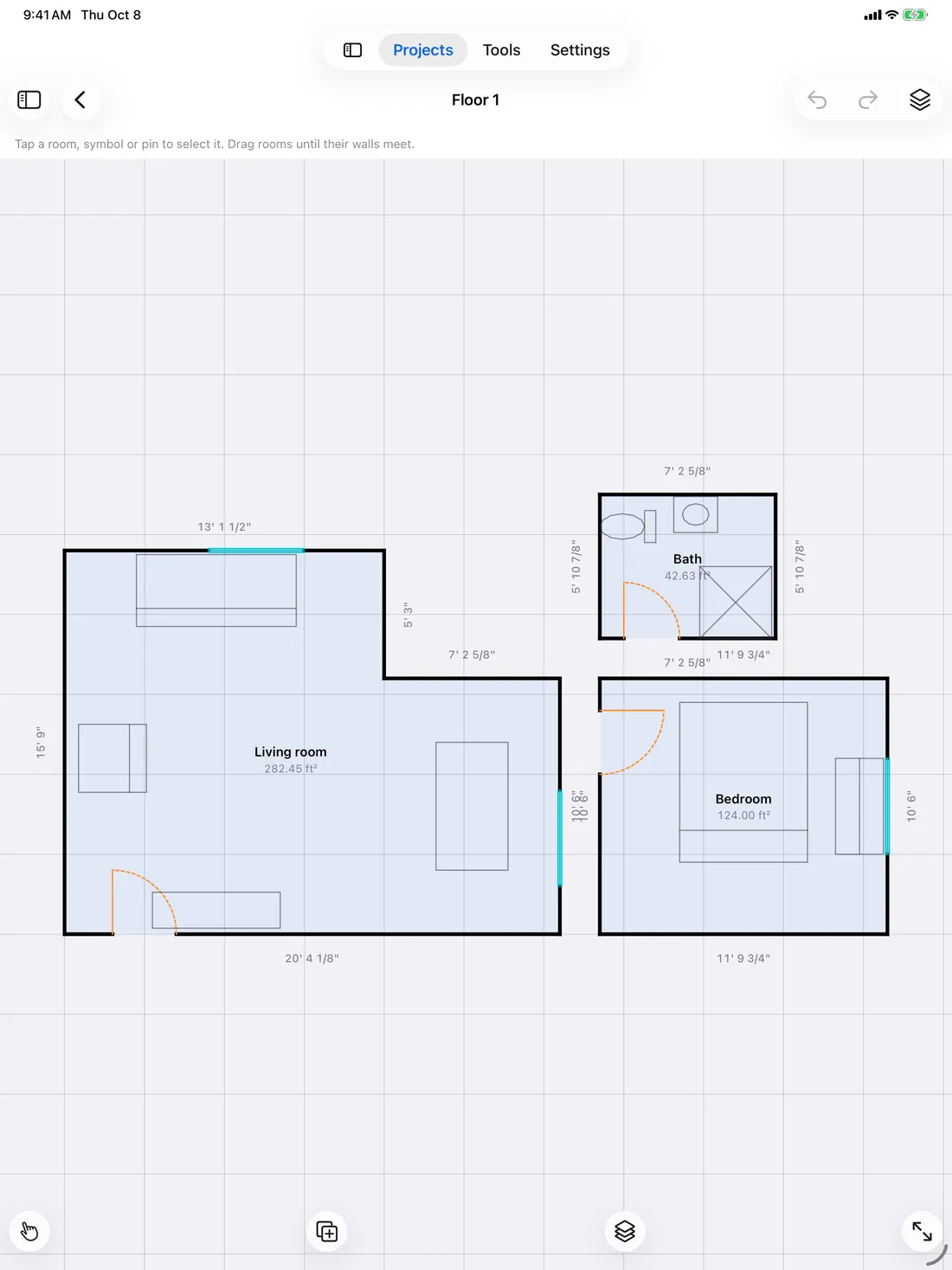
Arrange a floor plan: snap rooms together, add floors and furniture
Arrange rooms into a floor plan in PlanSnap: snap walls together, add floors and layout variants, set north by compass, place furniture, sockets and notes.
ReadHow to measure a room’s square footage with your phone
Measure a room with LiDAR, AR corners or tape lengths and let PlanSnap work out floor area, perimeter and wall area, with accuracy tips and when to use a tape.
Read guide