Scan a room with LiDAR: walls, doors and windows in one walk
Scan a room with LiDAR in PlanSnap using Apple RoomPlan, check the result and swipe away mistakes, then keep walls, doors, windows and the 3D scan in a project.
Short answer
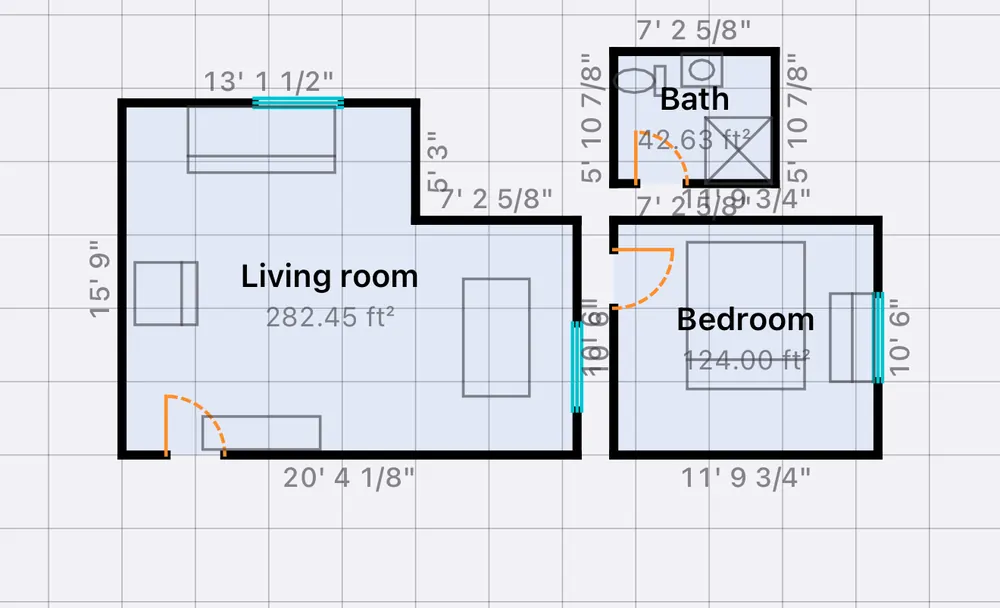
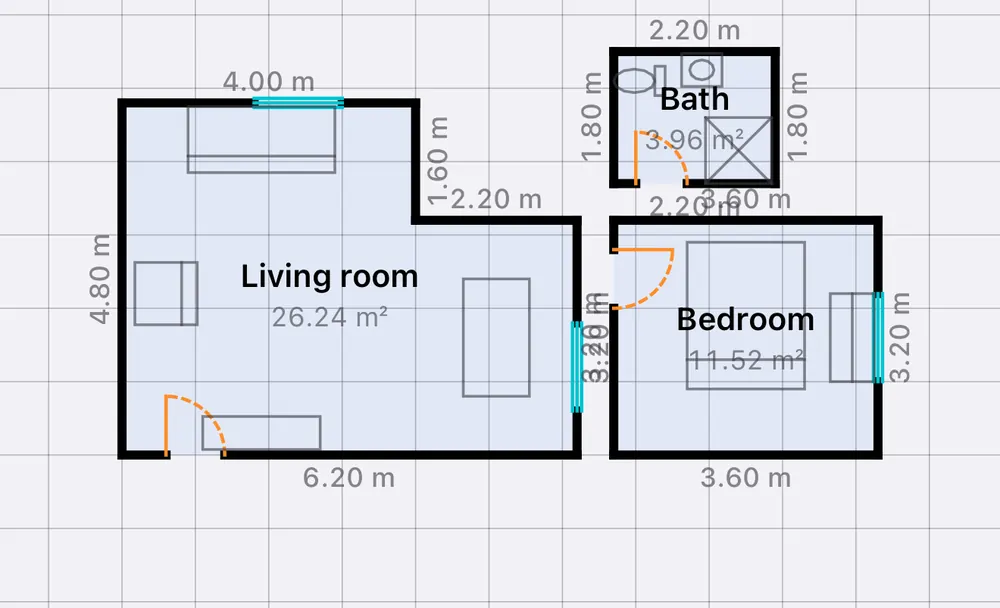
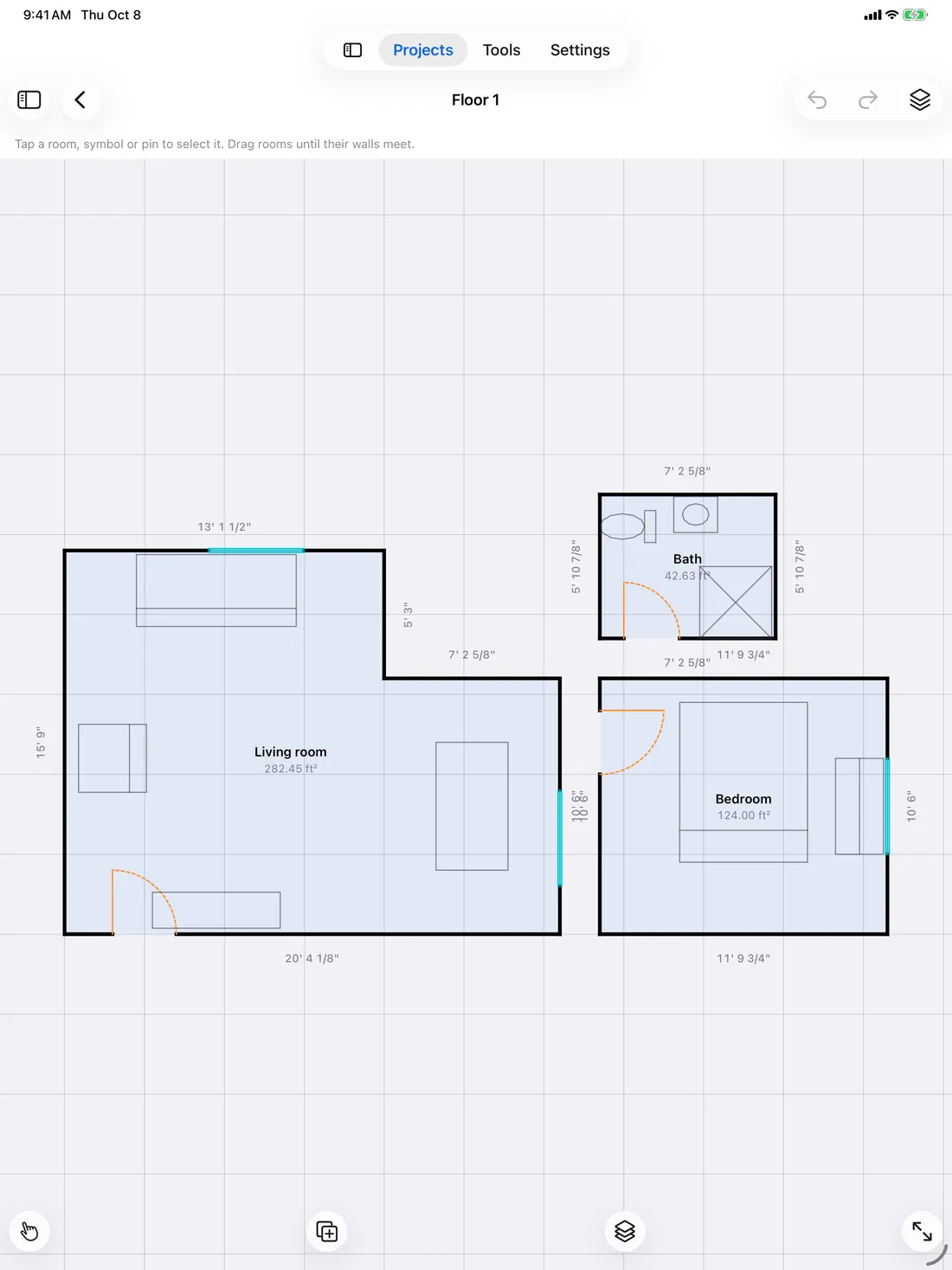
On an iPhone or iPad with LiDAR, PlanSnap can scan a whole room with Apple's RoomPlan. You walk round the room, tap Done, check the walls, doors, windows and furniture it found, swipe away anything it got wrong, and tap Use scan. The room arrives in your project as an editable floor plan, and the 3D scan is kept with it.
Tapping corners one by one works on any AR device, but if your iPhone or iPad has a LiDAR scanner there is a faster way. PlanSnap uses Apple's RoomPlan to find the walls and openings for you while you walk, then turns the result into the same kind of room you would get from capturing corners in AR. See how it fits with the other ways to add a room in the features overview.
What the LiDAR scan gives you
RoomPlan looks for the main parts of a room and PlanSnap keeps them all:
| From the scan | What PlanSnap does with it |
|---|---|
| Walls | Builds the room outline, lined up and with nearly square corners made square |
| Doors, windows and openings | Places each one on the wall it sits in |
| Wall height | Uses the tallest wall as the ceiling height |
| Furniture | Keeps it with the room, for room type suggestions and the 3D view |
| The 3D model | Saves it in the project so you can look at it again later |
The furniture RoomPlan recognises includes storage, fridge, stove, bed, sink, washer or dryer, toilet, bathtub, oven, dishwasher, table, sofa, chair, fireplace, television and stairs. Anything else is listed as "Object".
How to scan a room
Scan a room with LiDAR
- Open a project and tap +, then Scan with LiDAR. Allow camera access if asked.
- Stand in the room and hold the iPhone upright. Follow RoomPlan's on-screen coaching and move slowly along each wall.
- Point at every wall, door and window until it is outlined. The screen stays awake while you scan.
- Tap Done. RoomPlan processes the scan and shows its own preview.
- Tap Next to open Check the scan.
- Swipe left on any wall, door, window or piece of furniture that is wrong and tap Delete.
- Tap Use scan. The room is added to the project.
Check the scan before you keep it
RoomPlan is good, but a mirror, a glass door or a large cupboard can confuse it. The Check the scan screen shows a plan preview at the top, with lists below for Walls, Doors, Windows, Openings and Furniture. Walls and openings show their length; furniture shows its width and depth.
The footer says it plainly: "Swipe left on anything RoomPlan got wrong to delete it." If you delete a wall, PlanSnap rebuilds the outline from the walls that are left and redraws the preview, so you can see the effect before you tap Use scan.
Ceiling height and openings
PlanSnap takes the ceiling height from the tallest wall in the scan, as long as it is between about 5' 11" and 19' 8" (1.8 to 6 m). Otherwise a default height is used, which you can change in the room editor. Doors and windows are placed on a wall if they are within about 16" (40 cm) of it.
View the 3D scan again
The scan itself is not thrown away. PlanSnap saves RoomPlan's 3D model in the project folder. In the project's room list, touch and hold a scanned room and choose View 3D scan to open it in Quick Look, where you can turn it round with your fingers. Deleting the room deletes the scan files too.
Scanned rooms also show a different icon in the room list than rooms you captured by corners or drew by hand, so you can tell at a glance where each room came from. The furniture RoomPlan found feeds Suggest room types in the project's More menu, and can be shown in the 3D view of the whole floor, which is part of Pro.
When a scan does not finish
If something goes wrong, PlanSnap explains it and gives you a Scan again button:
- Tracking lost: "Move more slowly, keep the lights on and point at walls with some texture."
- Too warm: "Your iPhone got too warm. Let it cool down for a few minutes, then scan again." If the phone gets critically hot, PlanSnap stops the scan and keeps what it has seen so far.
- App sent to the background: "RoomPlan can't keep tracking while PlanSnap is in the background. Scan the room again from the start."
- No room found: "Scan again and make sure every wall is outlined."
Fixing details after the scan
A scanned room is an ordinary PlanSnap room. Open it to type a wall length, drag a corner, move a door or flip its swing in the room editor. Then place it next to the other rooms on the floor plan.
Which method should you use?
LiDAR is the quickest way to get a whole room with its openings. Corner capture works on more devices and lets you place each corner yourself, and drawing from tape lengths needs no camera at all. Our guide to LiDAR, AR or a tape goes through when each one makes sense.
Which devices can scan a room with LiDAR in PlanSnap?
iPhone and iPad models with a LiDAR scanner that support Apple RoomPlan. If your device does not have one, the + menu offers Capture corners with AR and the drawing options instead.
Can I delete a wall that RoomPlan got wrong?
Yes. On the Check the scan screen, swipe left on the wall and tap Delete. PlanSnap rebuilds the outline from the remaining walls.
Is the 3D model saved?
Yes. The scan is saved in the project folder. Touch and hold the room in the room list and choose View 3D scan to open it in Quick Look.
Why did my scan stop?
Usually because the space was too big, tracking was lost, the phone got too warm or the app went to the background. PlanSnap tells you which and offers Scan again.
Can I scan a whole apartment at once?
Scan one room at a time and keep each scan under about 9 × 9 m. Then arrange the rooms side by side on the floor plan.
Keep reading
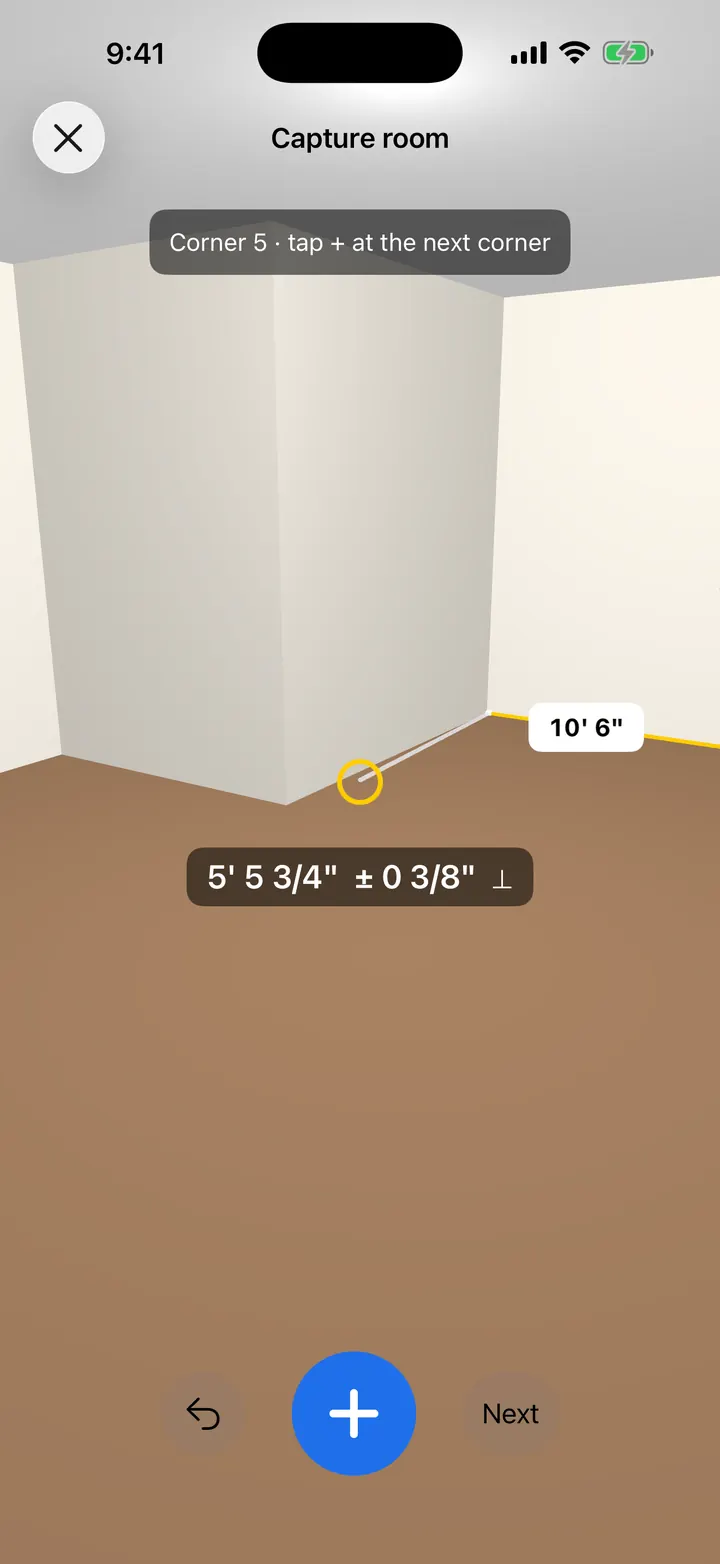
Capture a room in AR: tap the corners, get a floor plan
How PlanSnap turns a room into a floor plan in AR: tap each floor corner, add the ceiling height, mark doors and windows, then square up nearly square corners.
ReadRoom editor: wall lengths, corners, doors and windows
How the PlanSnap room editor works: tap a wall to type its length, drag corners and walls, add doors and windows, flip a door swing and read the net wall area.
Read
3D view and wall elevations: see your floor plan in 3D and every wall face-on
Walk around a PlanSnap floor plan in 3D, place furniture, view it in AR at true size, and draw each wall face-on with openings, sockets and dimension chains.
ReadLiDAR, AR or tape measure: which way should you add a room?
PlanSnap can scan a room with LiDAR, capture corners in AR or take lengths from a tape. What each method needs, how accurate it is and when to use which.
Read guide